Landscaper - Garden WordPress Theme
Created: 03 April 2023
Latest Update: 20 May 2025
Version: 1.0
Recommended WordPress Version : 6.7 & Above
By: risingthemes
Email : support@risingthemes.net

Thank you very much for purchasing our theme.
We hope you have enjoyed the template’s live preview and you want to create such a beautiful website. Now, this documentation is everything needed for you to setup your perfect website. Please follow each instruction carefully, even single a line of code can do wonders (in all senses) so please don’t miss anything on this user guide
If you have any question, please feel free to contact us.
Read this before you edit anything
1. Why this documentation is very important?
We are sure that we have covered all the essential instructions needed to setup a nice theme as you see in our template’s live preview. We expect you to read this user guide before you open any support request (if you ask about things already present in this guide, you will be gently asked to read this again
2. If I need help, will you provide free support?
Yes, we have a dedicated support system where we offer free support. Our support is applicable only for issues and bugs within our product. We do NOT provide free customisation services in the scope of free support.
3. What kind of support are you providing?
We offer free support for our products where we can help you fix issues within our code (if any) and assist you on theme setup. Please note support is not applicable for third party jQuery plugins and GPL code components (because they are not created or maintained by us).
4. When can I expect a response from you?
Our team will be online during 10.00 to 17.00 on Monday – Friday (IST, India). For support request we usually make a response within 24 hours. Due to the complex nature of some queries, responses can’t be guaranteed a specific turn-around time, but we value each user and we will surely get back to you. In case if we experience heavy load of support tickets we will announce the status on Twitter.
5. If I need to customize this template will you offer it?
We are unable to provide free customisation services on our products. If you have great passion and considerable budget please open the request as a premium project, please email to: support@risingthemes.net We will get back to you via email.
6. How can I know about future updates and bug fixes?
We release updates regularly and we notify our users via Tweets as well as Email Newsletters (we do hate spam).
Theme Installation
1. Through WordPress Dashboard
- Go to the menu Appearance > Themes and click on Add New button.
- Click on Upload Theme button.
- Click on Browse button and navigate to the unzipped theme package on your computer.
- Look for a file called landscaper-pro.zip Click on it to select, then click OK.
- Click on Install Now button and wait until the installation is complete.
- Click on Activate link to activate the theme on your WordPress site.
- Go to Appearance >> Theme Options >> Restore Default.
Manual Installation using FTP client
If you know the FTP login details of the server where your site is hosted and you have a FTP client installed (such as FileZilla), you might consider using this way of uploading your theme.
- Unzip the landscaper-pro.zip file
- Upload theme to /wp-content/themes/
- Go to Appearance -> Themes and activate theme from Dashboard.
First you have to unzip the download file, find the zip file called landscaper-pro.zip, unzip it and upload the folder to the main WordPress installation folder » wp-content » themes. Please note that if you prefer this way of installation, you have to make sure that the main files of the theme are contained just within one folder of the themes folder.
You can activate the theme after it is uploaded on the server. In order to activate this theme you have to go to the admin panel » Appearance » Themes. In this section you should see the theme with a title landscaper. Just click on the Activate button and your theme should get activated.
Homepage Setup
After activating the landscaper theme, setup homepage using following
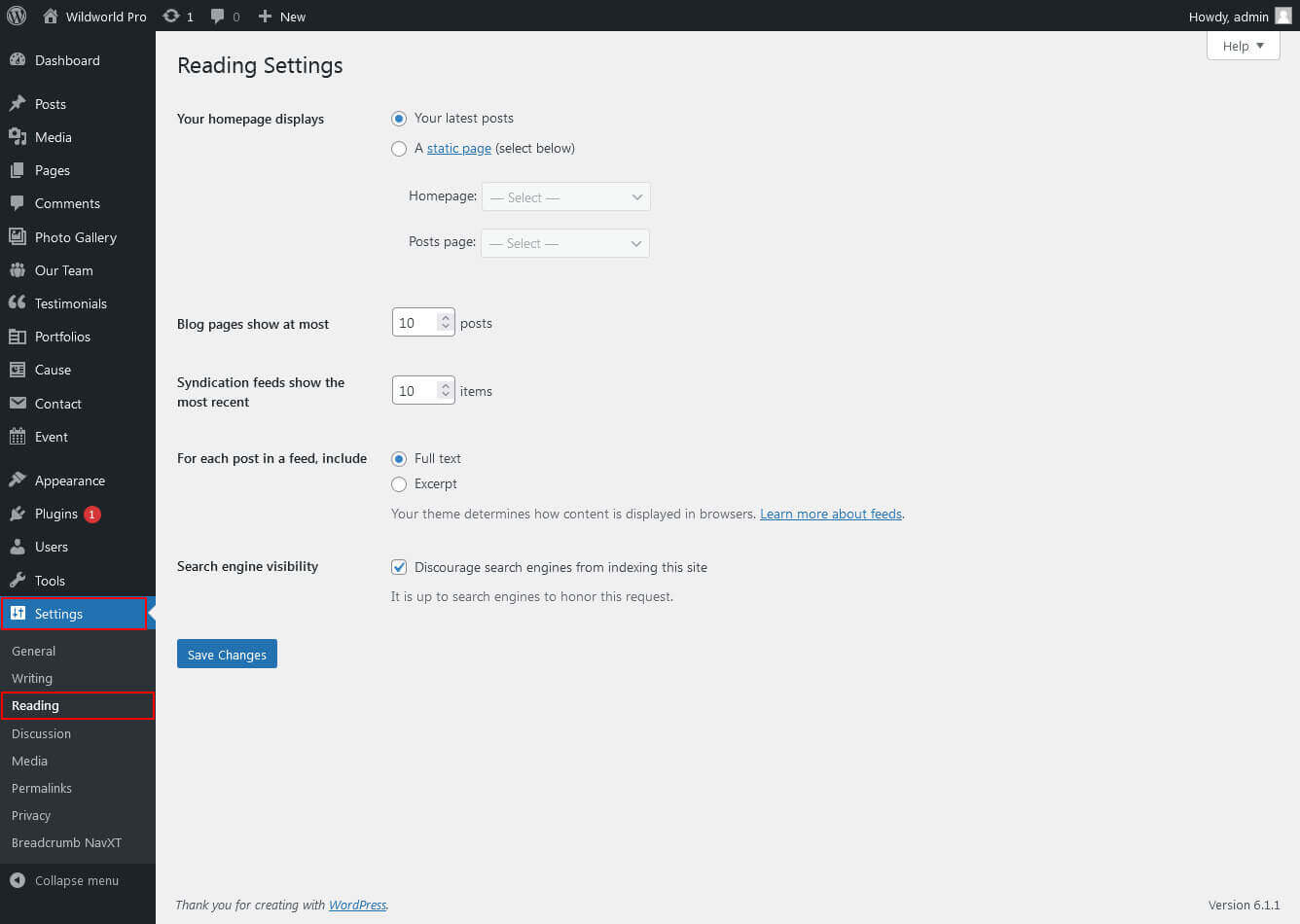
- Go to Settings -> Reading -> Front page displays
- Click on radio button of Your latest posts
- Go to Appearance -> Theme Options and click on Restore Defaults in bottom side
Header Setting
The header consists of four main elements:
- Site Name / Logo
- Navigation Menu

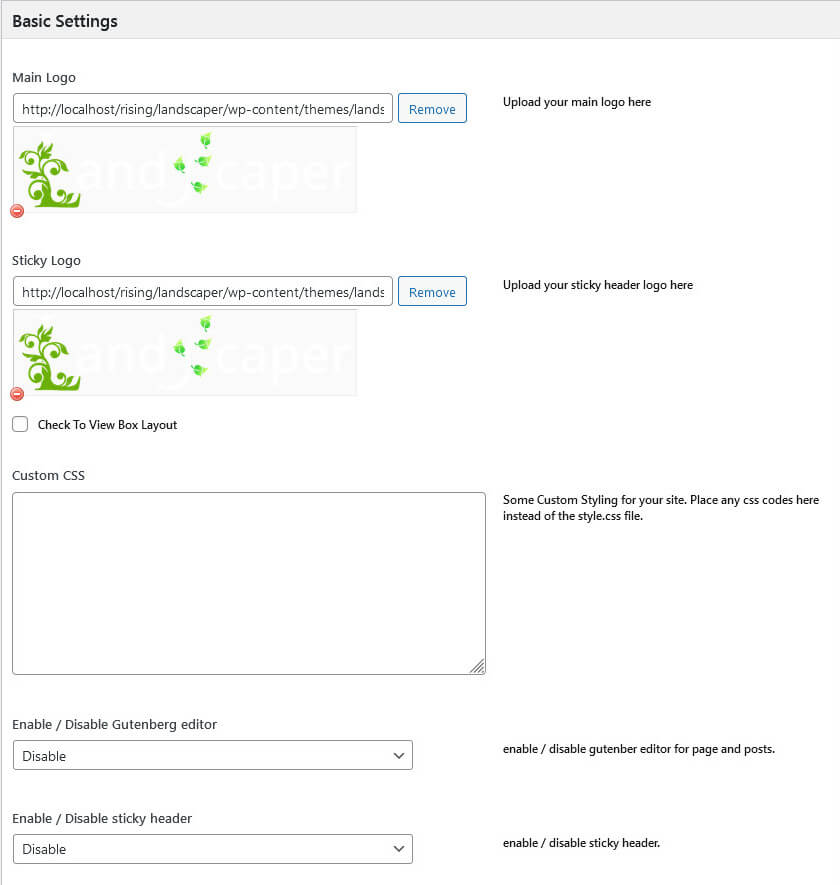
1. Setting the Site Logo
The settings for to change the Site Logo is located in Appearance » Theme Options » Basic Setting
Setup Navigation
1. Multipage Menu
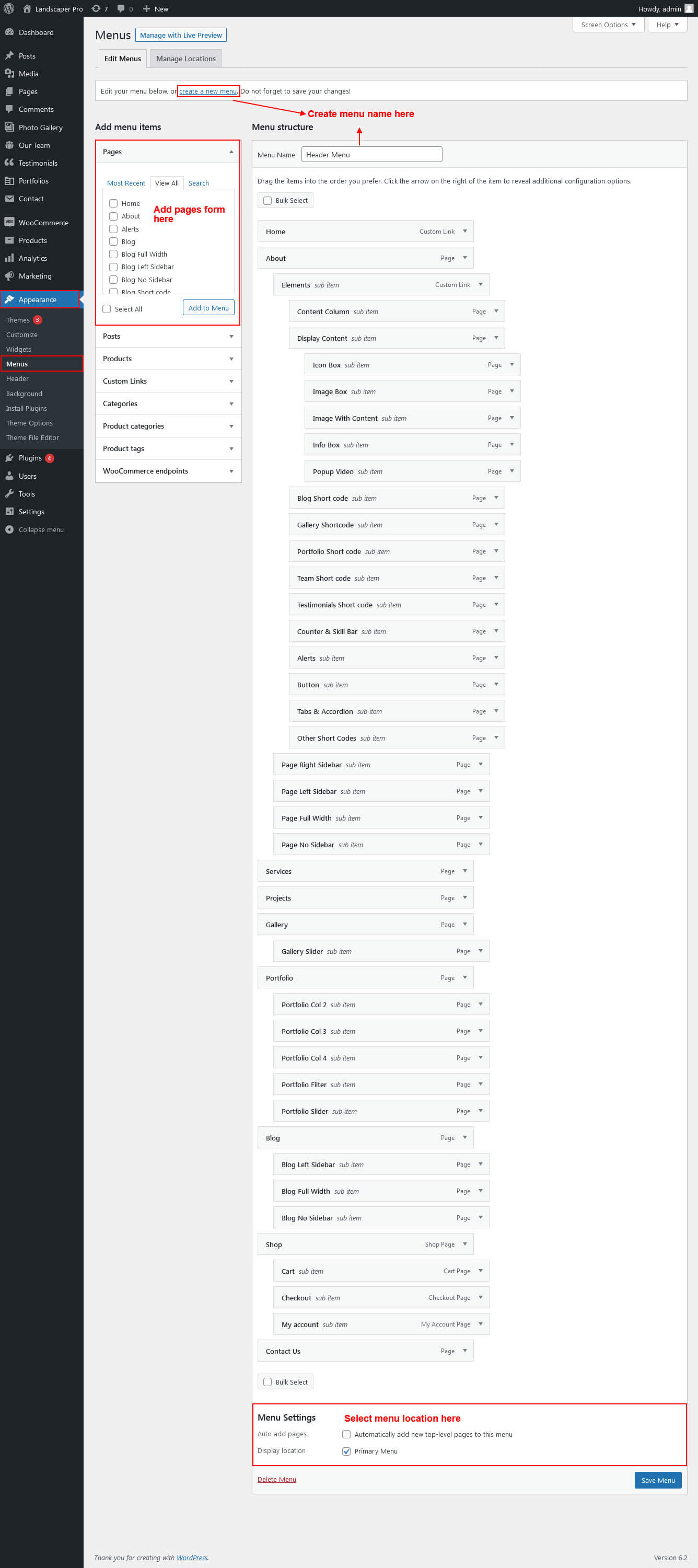
- First of all create pages from Pages >> Add new page
- Go to Appearance >> Menu
- Click on Create a new menu link
- Give a name to your menu in Menu name and click save menu button
- Once you have create menu. You need to add pages by selecting with checkboxes. After adding menu list you can arrange it by drag and drop.
- Select menu theme locations Primary Left Menu and Primary Right Menu from Menu Settings
- Click Save Menu after adding required pages, categories in the menu
Primary Menu
Setup Homepage Slider

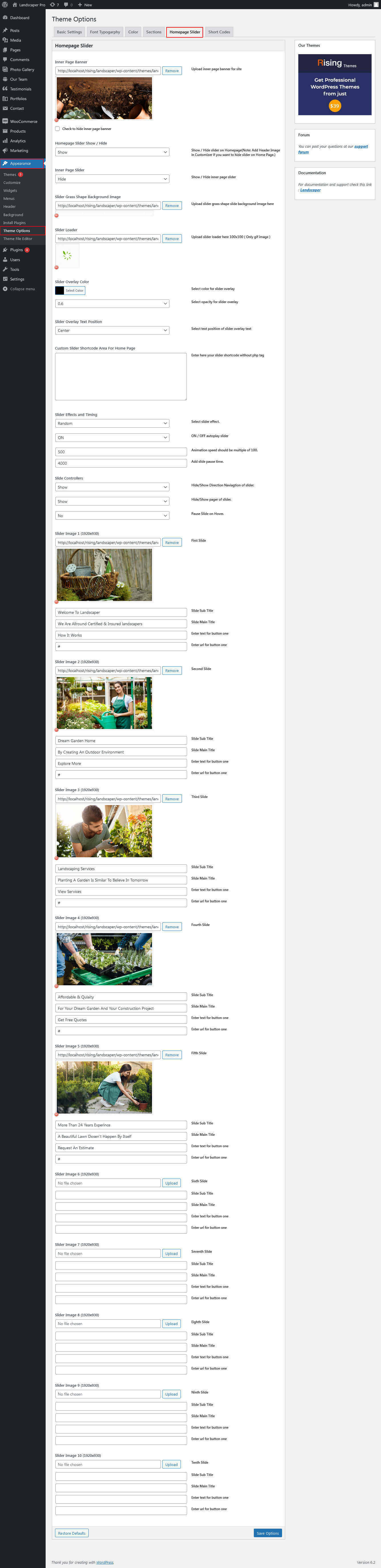
In order to add slides to homepage slider go to the Appearance » Theme Options » Homepage Slider
For each slide there are different options that you can apply.
- You can change Home Page Slider Hide/Show.
- You can change Slider Effects and Timing.
- You can change Slider Animation speed, pause time
- You can change Slider Hide/Show Direction Naviagtion of slider.
- You can change Slider Hide/Show pager of slider.
- You can change Slider Pause Slide on Hover.
- Slider images should be of size 1920 × 1050 pixels
If you don't want to use this default image slider, you can use any image slider WordPress plugin
- Go to Appearance » Theme Options » Homepage Slider
- Enter your slider shortcode which is provided by plugin without php tag
Sections
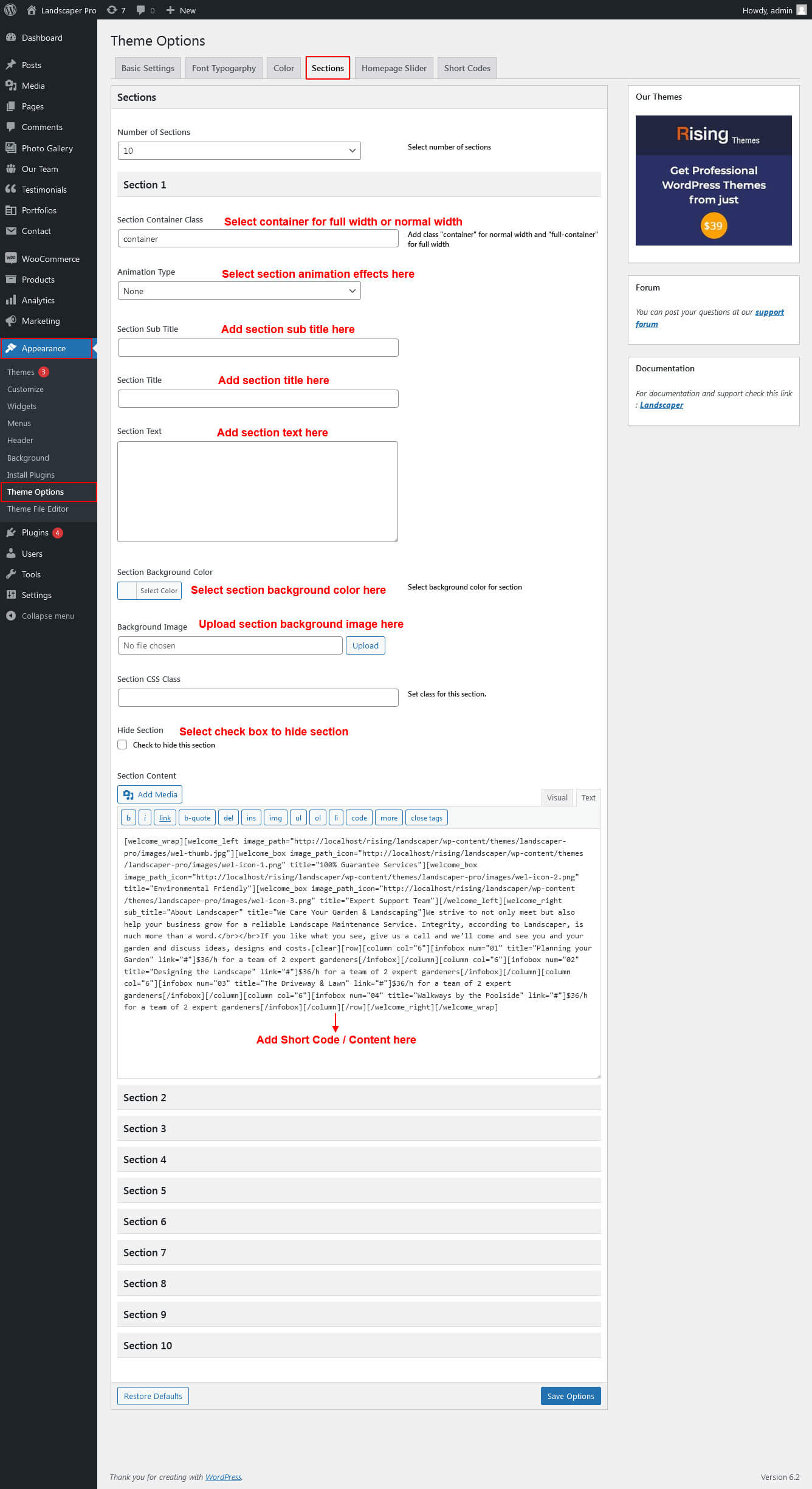
Section setting
Homepage Sections
The homepage contatins lots of section to create beautiful and professional website.
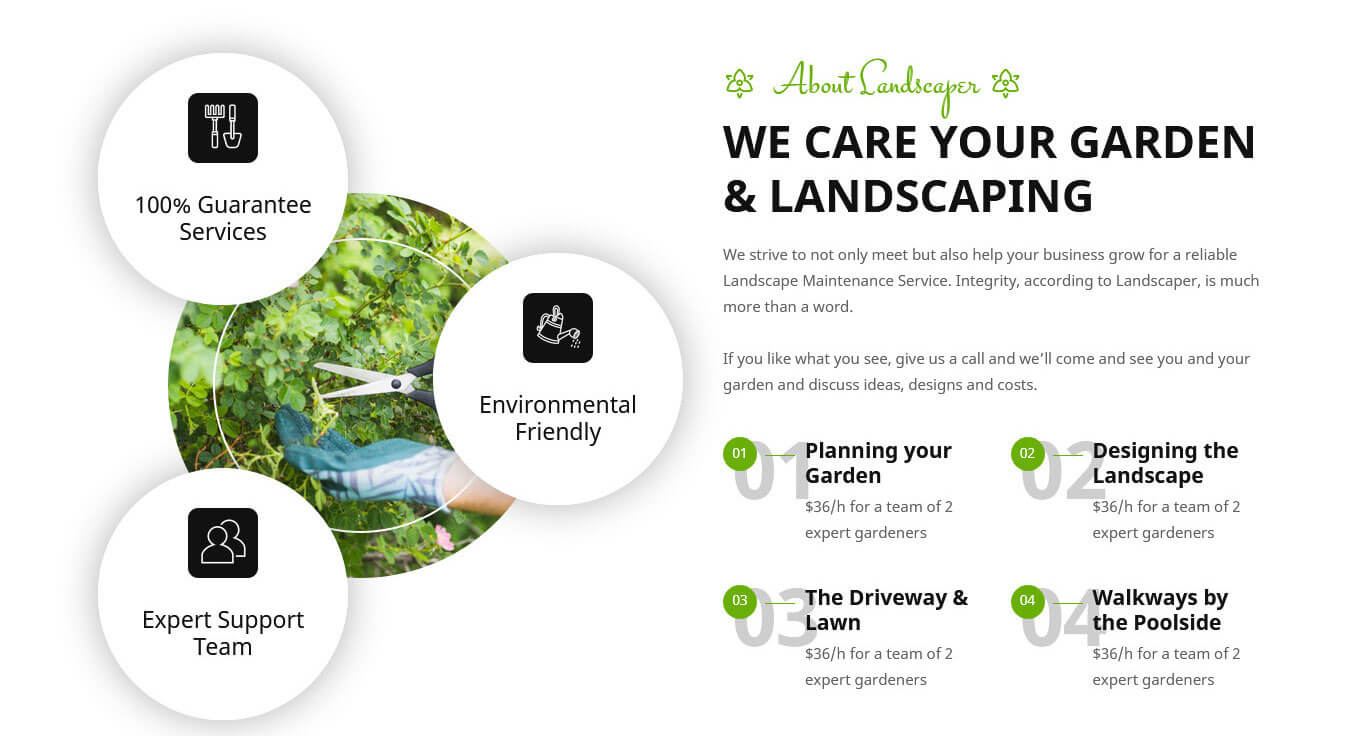
1. About Landscaper Section
- To manage this section go to Appearance » Theme Options » Sections » Section 1
- Use this shortcode to display About Landscaper section :
- [welcome_wrap][welcome_left image_path="http://localhost/rising/landscaper/wp-content/themes/landscaper-pro/images/wel-thumb.jpg"][welcome_box image_path_icon="http://localhost/rising/landscaper/wp-content/themes/landscaper-pro/images/wel-icon-1.png" title="100% Guarantee Services"][welcome_box image_path_icon="http://localhost/rising/landscaper/wp-content/themes/landscaper-pro/images/wel-icon-2.png" title="Environmental Friendly"][welcome_box image_path_icon="http://localhost/rising/landscaper/wp-content/themes/landscaper-pro/images/wel-icon-3.png" title="Expert Support Team"][/welcome_left][welcome_right sub_title="About Landscaper" title="We Care Your Garden & Landscaping"]We strive to not only meet but also help your business grow for a reliable Landscape Maintenance Service. Integrity, according to Landscaper, is much more than a word.</br></br>If you like what you see, give us a call and we’ll come and see you and your garden and discuss ideas, designs and costs.[clear][row][column col="6"][infobox num="01" title="Planning your Garden" link="#"]$36/h for a team of 2 expert gardeners[/infobox][/column][column col="6"][infobox num="02" title="Designing the Landscape" link="#"]$36/h for a team of 2 expert gardeners[/infobox][/column][column col="6"][infobox num="03" title="The Driveway & Lawn" link="#"]$36/h for a team of 2 expert gardeners[/infobox][/column][column col="6"][infobox num="04" title="Walkways by the Poolside" link="#"]$36/h for a team of 2 expert gardeners[/infobox][/column][/row][/welcome_right][/welcome_wrap]
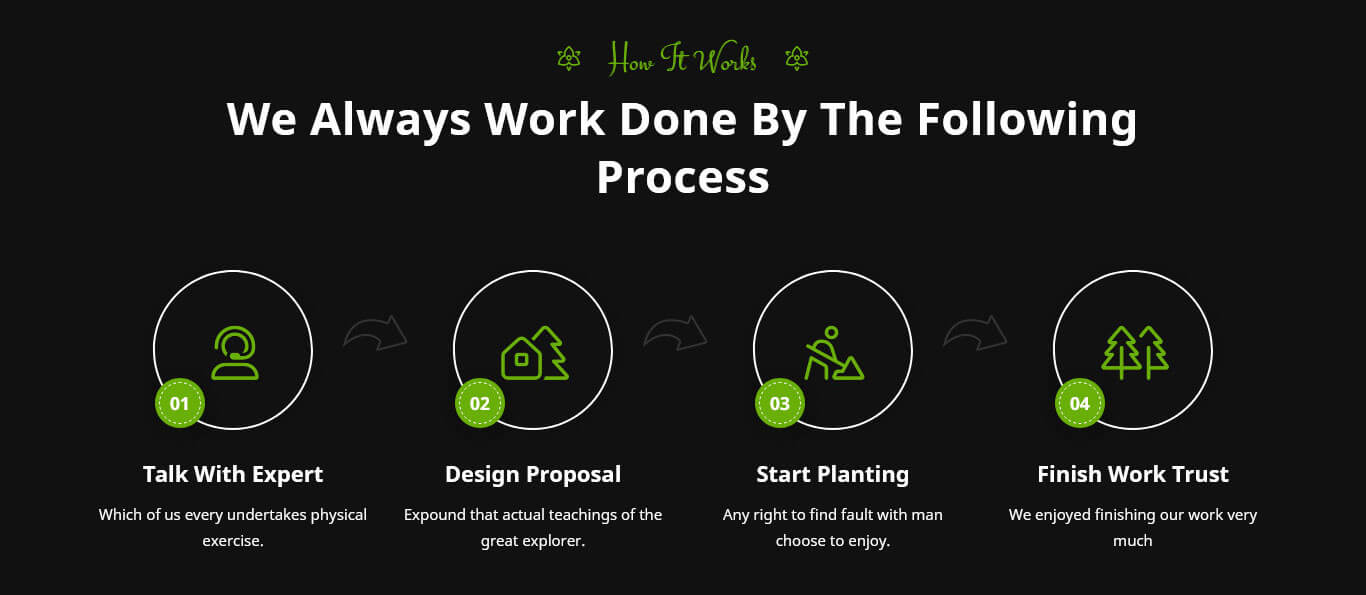
2. How It Works Section
- To manage this section go to Appearance » Theme Options » Sections » Section 2
- Use this shortcode to display How It Works section :
- [row][column col="3"][work_process sr_no="01" icon="user-headset" icon_style="light" title="Talk With Expert"]Which of us every undertakes physical exercise.[/work_process][/column][column col="3"][work_process sr_no="02" icon="house-tree" icon_style="light" title="Design Proposal"]Expound that actual teachings of the great explorer.[/work_process][/column][column col="3"][work_process sr_no="03" icon="person-digging" icon_style="light" title="Start Planting"]Any right to find fault with man choose to enjoy.[/work_process][/column][column col="3"][work_process sr_no="04" icon="trees" icon_style="light" title="Finish work trust"]We enjoyed finishing our work very much[/work_process][/column][/row]
3. Services We Offer Section
- To manage this section go to Appearance » Theme Options » Sections » Section 3
- Use this shortcode to display Services We Offer section :
- [row][column col="4"][services image_path="http://localhost/rising/landscaper/wp-content/themes/landscaper-pro/images/ser-1.jpg" image_icon_path="http://localhost/rising/landscaper/wp-content/themes/landscaper-pro/images/ser-icon-1.png" title="Landscaping" button_text="Read More" link="#"]The great explorer of the truth, the master-builder of human happiness. No one rejects, dislikes, or avoids pleasure itself, desires to obtain extremely.[/services][/column][column col="4"][services image_path="http://localhost/rising/landscaper/wp-content/themes/landscaper-pro/images/ser-2.jpg" image_icon_path="http://localhost/rising/landscaper/wp-content/themes/landscaper-pro/images/ser-icon-2.png" title="Gardening" button_text="Read More" link="#"]The great explorer of the truth, the master-builder of human happiness. No one rejects, dislikes, or avoids pleasure itself, desires to obtain extremely.[/services][/column][column col="4"][services image_path="http://localhost/rising/landscaper/wp-content/themes/landscaper-pro/images/ser-3.jpg" image_icon_path="http://localhost/rising/landscaper/wp-content/themes/landscaper-pro/images/ser-icon-3.png" title="Maintenance" button_text="Read More" link="#"]The great explorer of the truth, the master-builder of human happiness. No one rejects, dislikes, or avoids pleasure itself, desires to obtain extremely.[/services][/column][column col="4"][services image_path="http://localhost/rising/landscaper/wp-content/themes/landscaper-pro/images/ser-4.jpg" image_icon_path="http://localhost/rising/landscaper/wp-content/themes/landscaper-pro/images/ser-icon-4.png" title="Soil Cleaning" button_text="Read More" link="#"]The great explorer of the truth, the master-builder of human happiness. No one rejects, dislikes, or avoids pleasure itself, desires to obtain extremely.[/services][/column][column col="4"][services image_path="http://localhost/rising/landscaper/wp-content/themes/landscaper-pro/images/ser-5.jpg" image_icon_path="http://localhost/rising/landscaper/wp-content/themes/landscaper-pro/images/ser-icon-5.png" title="Leaf Cutting" button_text="Read More" link="#"]The great explorer of the truth, the master-builder of human happiness. No one rejects, dislikes, or avoids pleasure itself, desires to obtain extremely.[/services][/column][column col="4"][services image_path="http://localhost/rising/landscaper/wp-content/themes/landscaper-pro/images/ser-6.jpg" image_icon_path="http://localhost/rising/landscaper/wp-content/themes/landscaper-pro/images/ser-icon-6.png" title="Water Gardening" button_text="Read More" link="#"]The great explorer of the truth, the master-builder of human happiness. No one rejects, dislikes, or avoids pleasure itself, desires to obtain extremely.[/services][/column][/row]

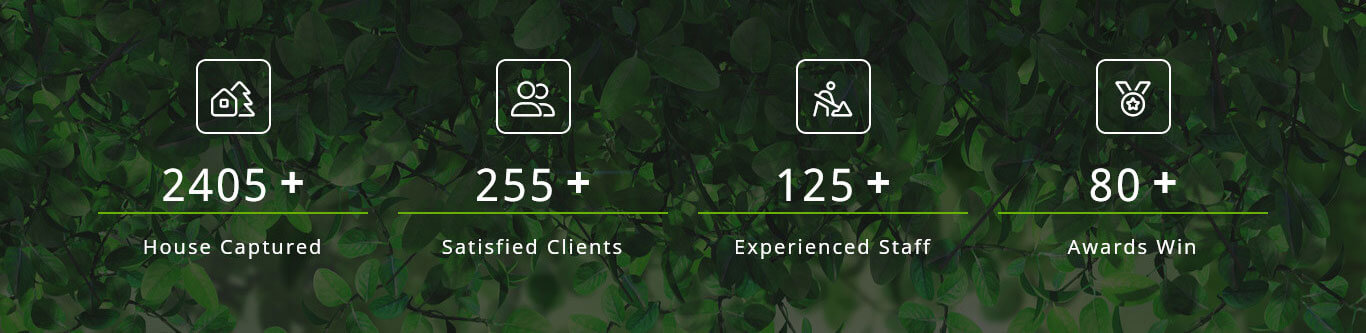
4. Counter Section
- To manage this section go to Appearance » Theme Options » Sections » Section 4
- Use this shortcode to display Counter section :
- [row][column col="3"][counter icon="house-tree" icon_style="light" title="House Captured" count="2405" plus="yes" num_color="#ffffff" title_color="#ffffff" icon_color="#ffffff"][/column][column col="3"][counter icon="user-group" icon_style="light" title="Satisfied Clients" count="255" plus="yes" num_color="#ffffff" title_color="#ffffff" icon_color="#ffffff"][/column][column col="3"][counter icon="person-digging" icon_style="light" title="Experienced Staff" count="125" plus="yes" num_color="#ffffff" title_color="#ffffff" icon_color="#ffffff"][/column][column col="3"][counter icon="medal" icon_style="light" title="Awards Win" count="80" plus="yes" num_color="#ffffff" title_color="#ffffff" icon_color="#ffffff"][/column][/row]
5. Project / Portfolio Section
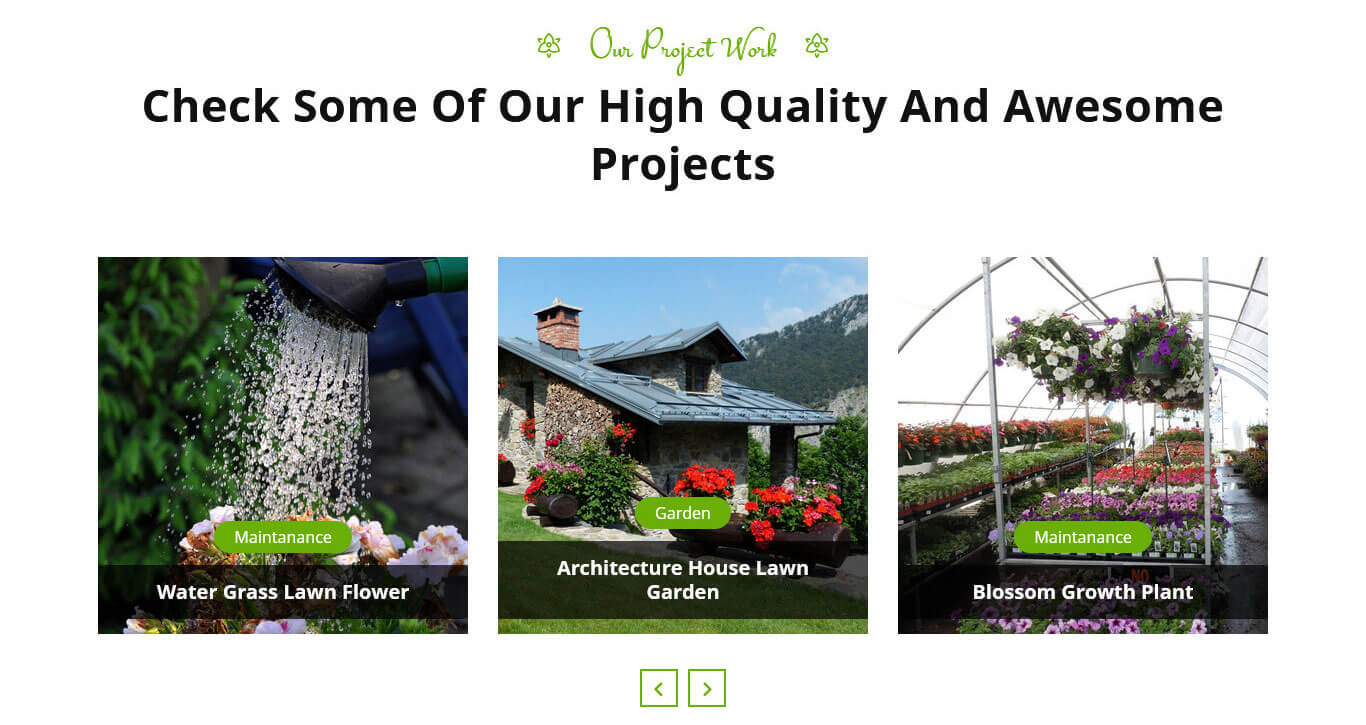
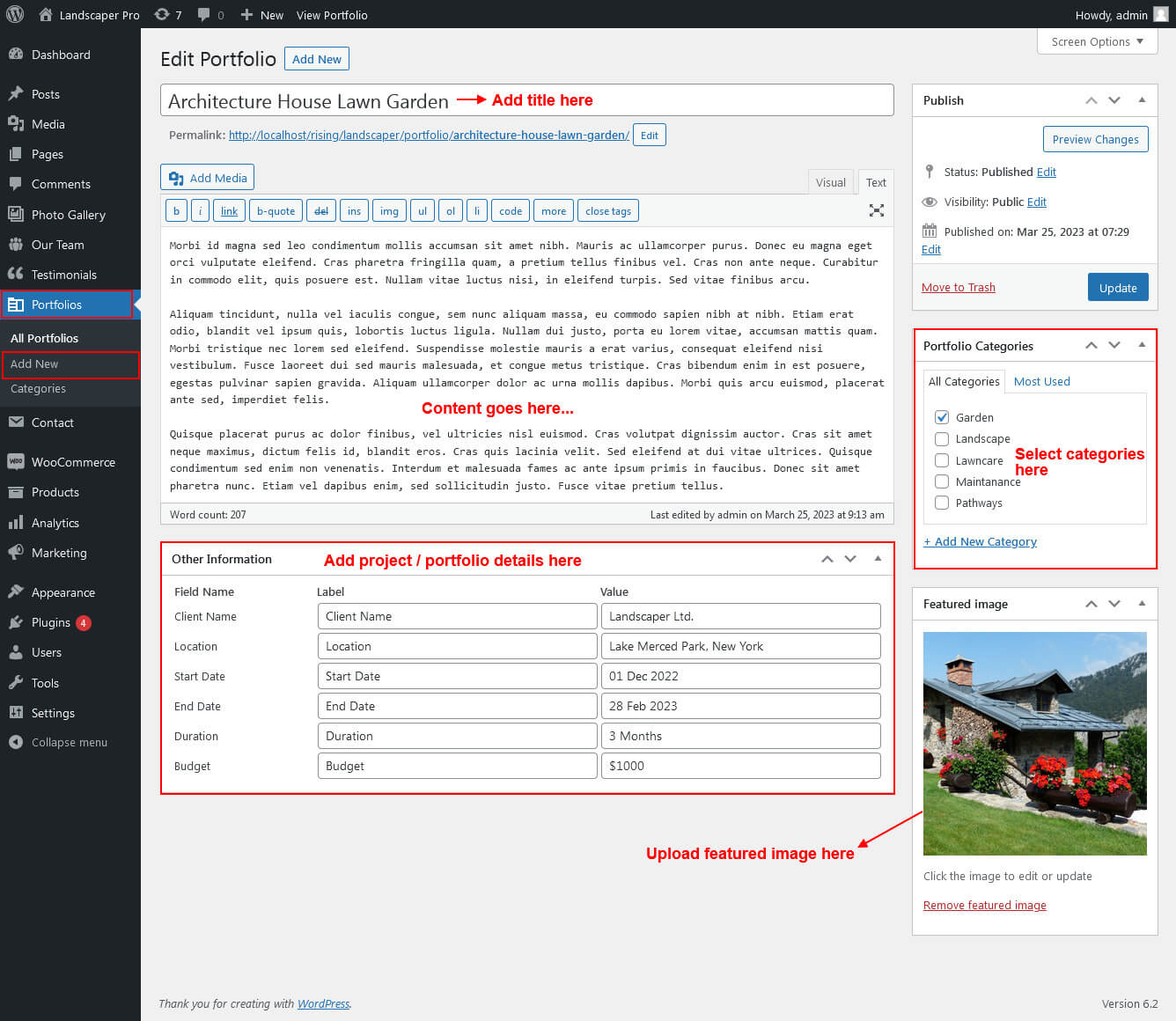
This section is used to display Project / Portfolio
- First of all create new posts from Portfolio -> Add New
- To manage this Portfolio / Project section go to Appearance » Theme Options » Sections » Section 5
- Use this shortcode to display Portfolio / Project in Grid View: [portfolio type="grid" show="-1" column="2/3/4" filter="true/false"]
- Use this shortcode to display Portfolio / Project in Slider View: [portfolio type="slider" show="-1" column="3"]
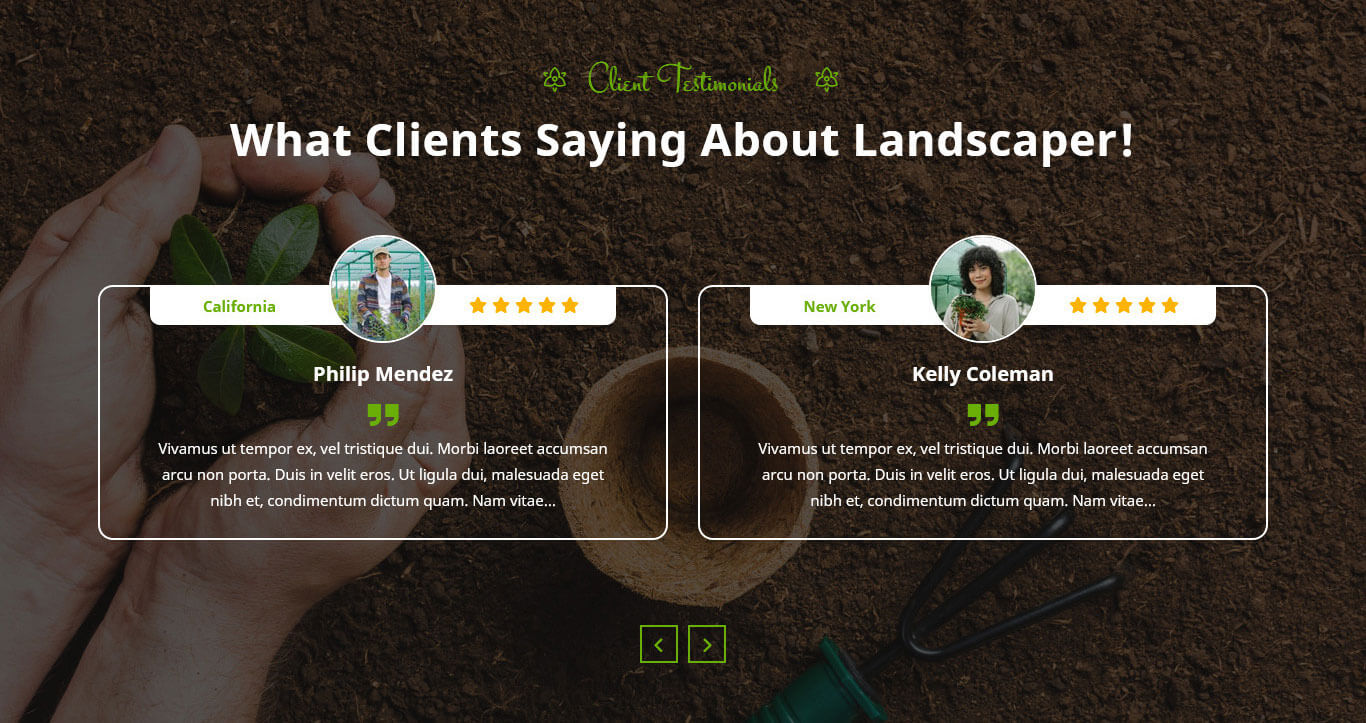
6. Client Testimonials
This section is used to display Client Testimonials in your website
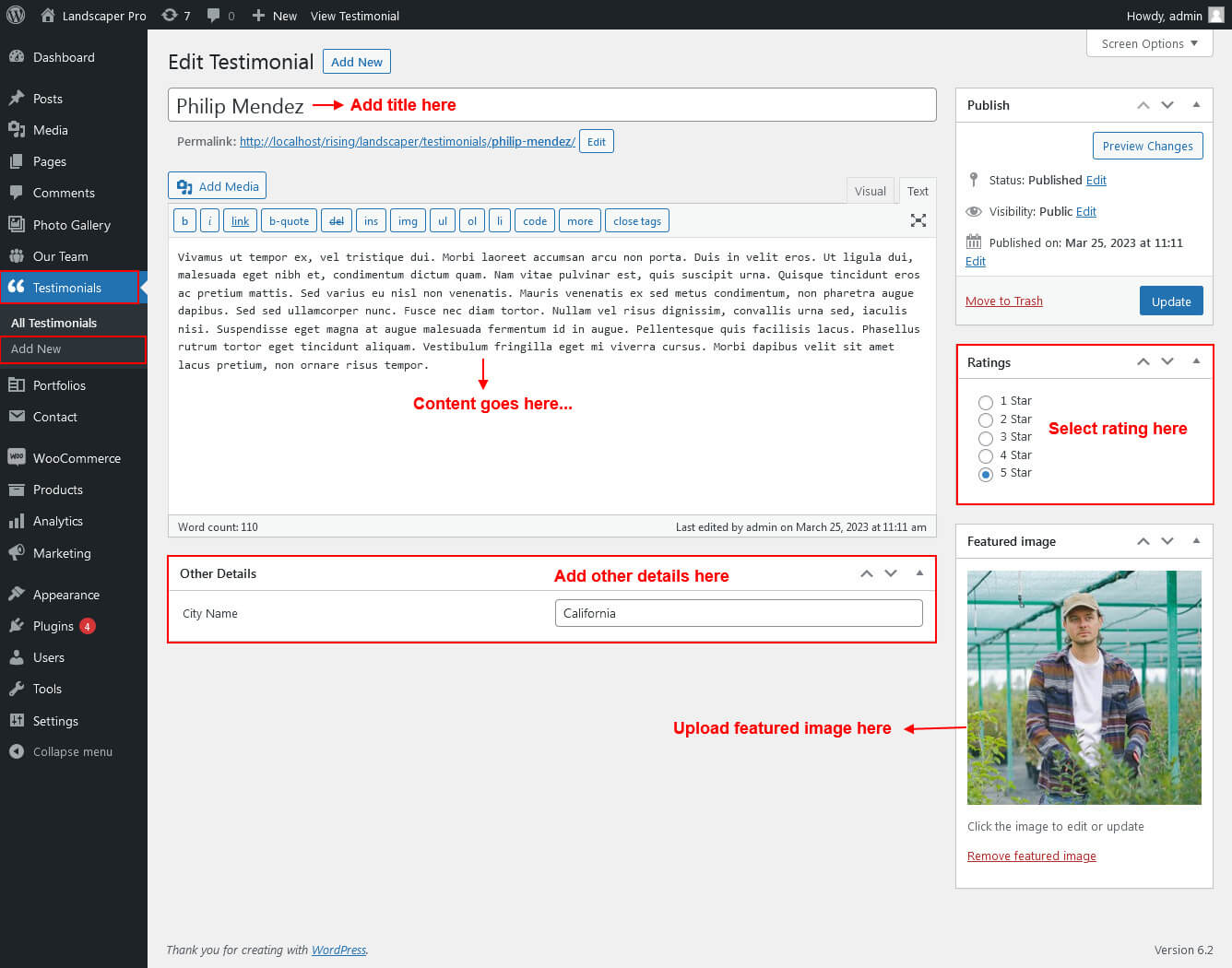
- First of all create new posts from Testimonials -> Add Testimonials
- To manage this testimonials section go to Appearance » Theme Options » Sections » Section 6
- Use this shortcode to display Testimonials: [testimonials show="4"]
- Use this shortcode to display Testimonials Listing: [testimonials-listing show="4"]
- Use this shortcode to display Testimonials Sidebar Rotator: [sidebar-testimonials show="4"]
7. Meet Our Gardner
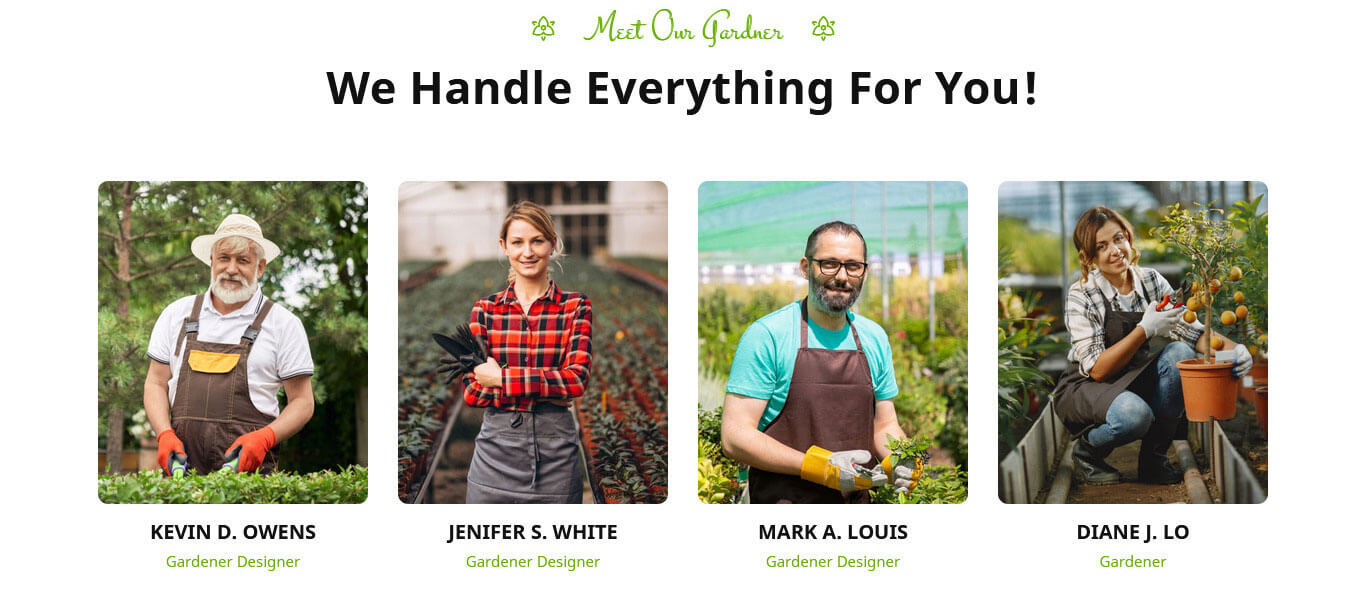
This section is used to display Meet Our Gardner
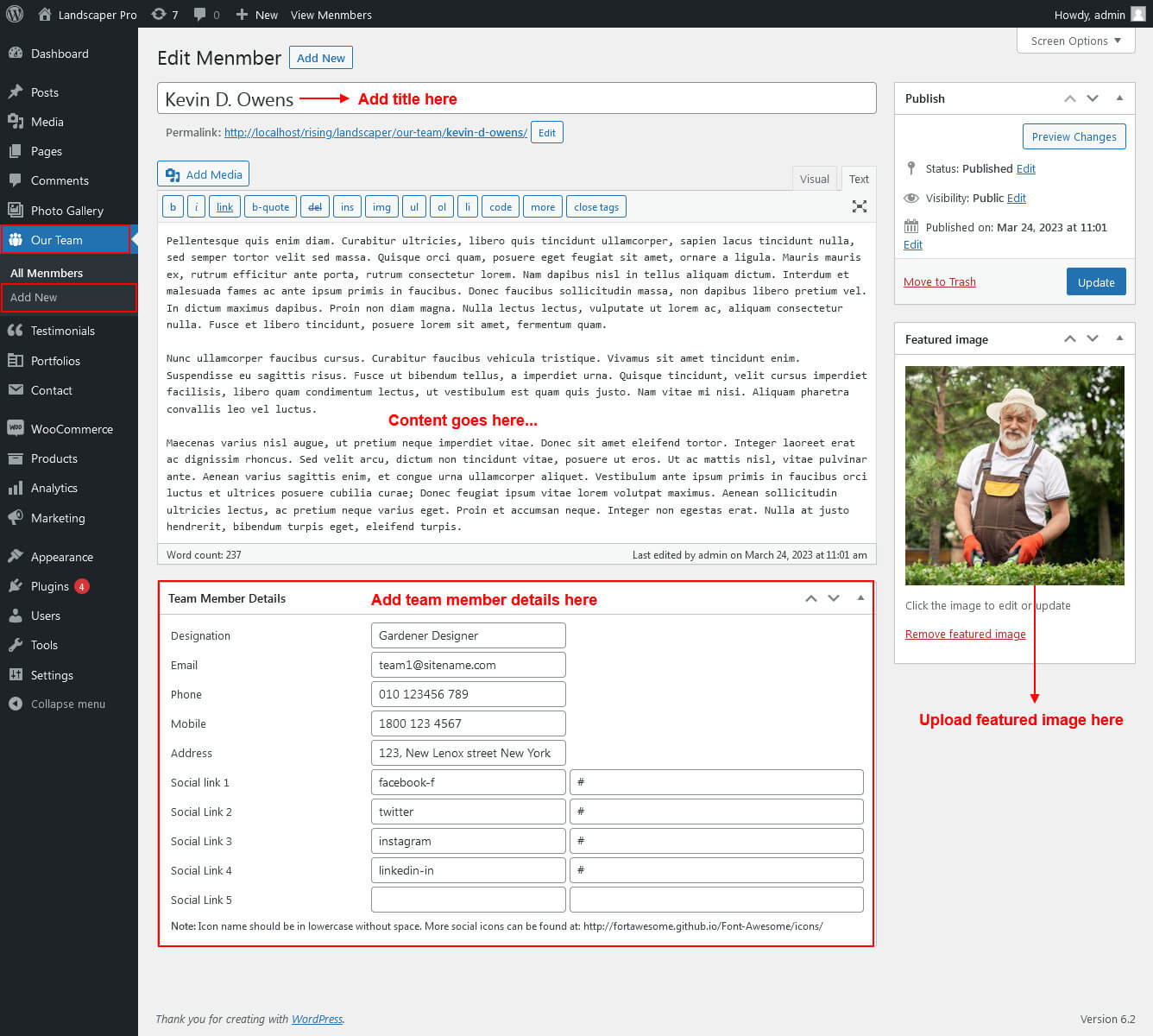
- First of all create new posts from Our Team -> Add New
- To manage this Team section go to Appearance » Theme Options » Sections » Section 7
- Use this shortcode to display Our Team in Grid View: [our-team type="grid" show="-1" column="2/3/4"]
- Use this shortcode to display Our Team in Slider View: [our-team type="slider" show="-1"]
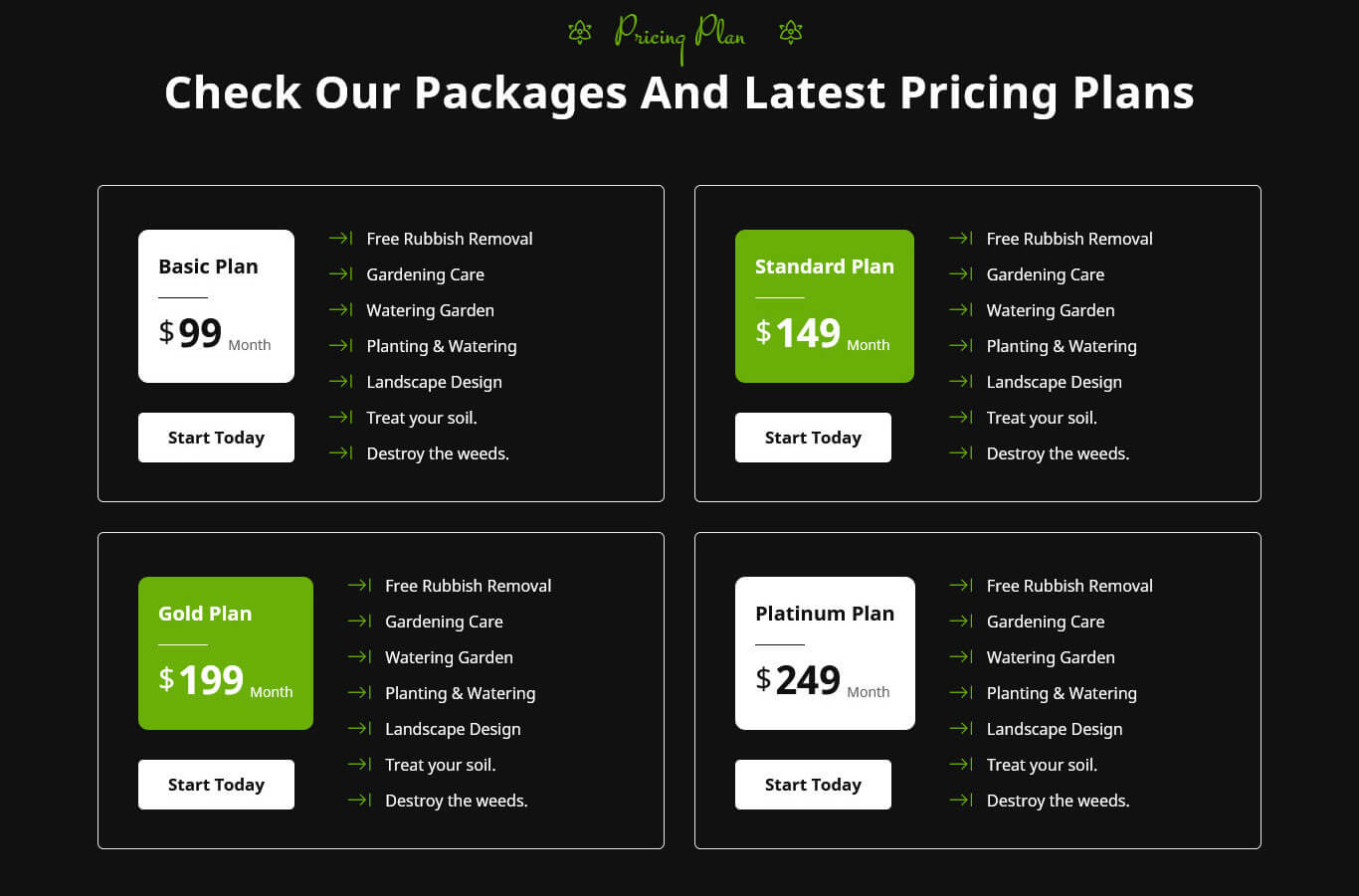
8. Pricing Plans Section
- To manage this section go to Appearance » Theme Options » Sections » Section 8
- Use this shortcode to display Our Pricing Plans section :
- [row][column col="6"][pricing-plan title="Basic Plan" price="99" price_sign="$" per_month="Month" row1="Free Rubbish Removal" row2="Gardening Care" row3="Watering Garden" row4="Planting & Watering" row5="Landscape Design" row6="Treat your soil." row7="Destroy the weeds." btn_label="Start Today" btn_link="#"][/column][column col="6"][pricing-plan highlight="yes" title="Standard Plan" price="149" price_sign="$" per_month="Month" row1="Free Rubbish Removal" row2="Gardening Care" row3="Watering Garden" row4="Planting & Watering" row5="Landscape Design" row6="Treat your soil." row7="Destroy the weeds." btn_label="Start Today" btn_link="#"][/column][column col="6"][pricing-plan highlight="yes" title="Gold Plan" price="199" price_sign="$" per_month="Month" row1="Free Rubbish Removal" row2="Gardening Care" row3="Watering Garden" row4="Planting & Watering" row5="Landscape Design" row6="Treat your soil." row7="Destroy the weeds." btn_label="Start Today" btn_link="#"][/column][column col="6"][pricing-plan title="Platinum Plan" price="249" price_sign="$" per_month="Month" row1="Free Rubbish Removal" row2="Gardening Care" row3="Watering Garden" row4="Planting & Watering" row5="Landscape Design" row6="Treat your soil." row7="Destroy the weeds." btn_label="Start Today" btn_link="#"][/column][/row]
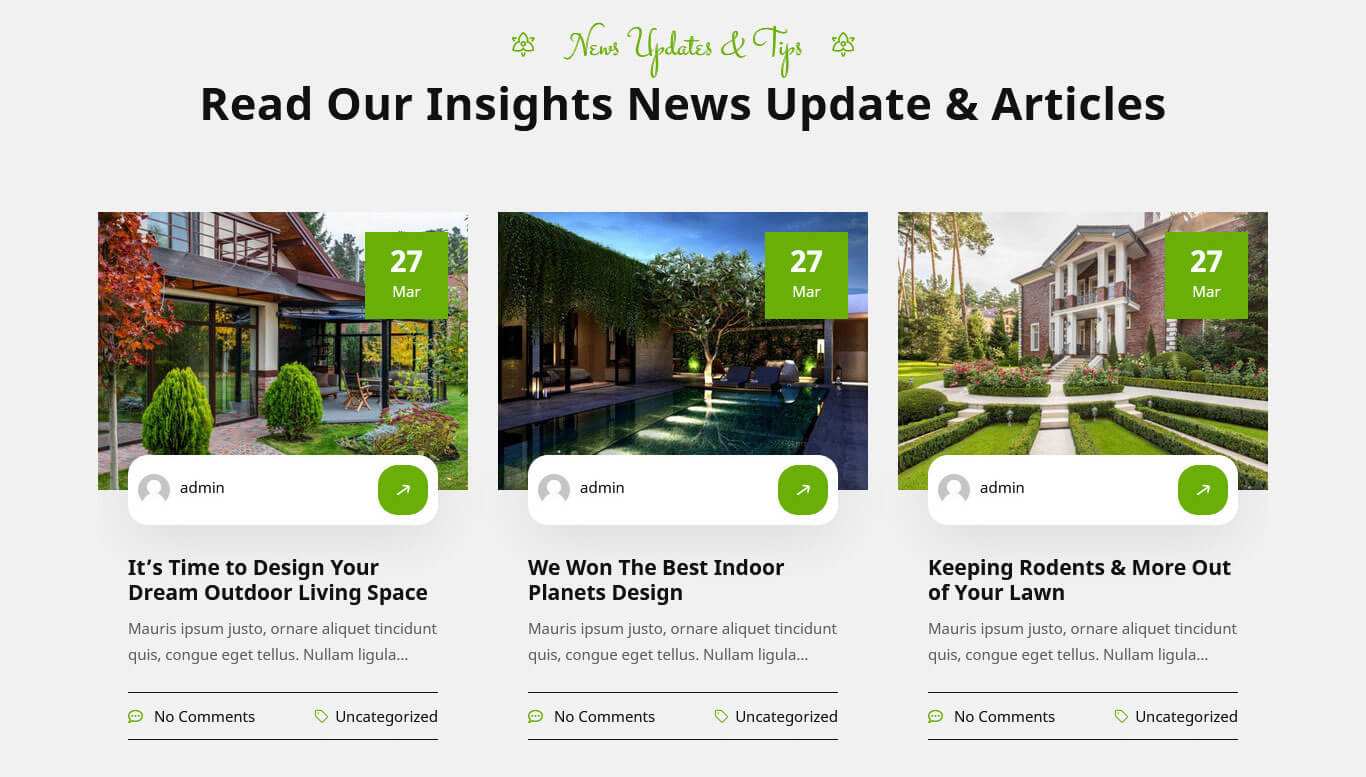
9. News Updates & Tips
This section is used to display News Updates & Tips in your website
- First of all create new posts from Posts -> Add Posts
- To manage this section go to Appearance » Theme Options » Sections » Section 9
- Use this shortcode to display News Updates & Tips posts type Grid: [latest-news show="3" type="grid" column="2/3/4" date="show/hide" comment="show/hide" author="show/hide" category="show/hide"]
- Use this shortcode to display News Updates & Tips posts type Slider: [latest-news show="-1" type="slider" comment="show" date="show" author="show" category="show"]
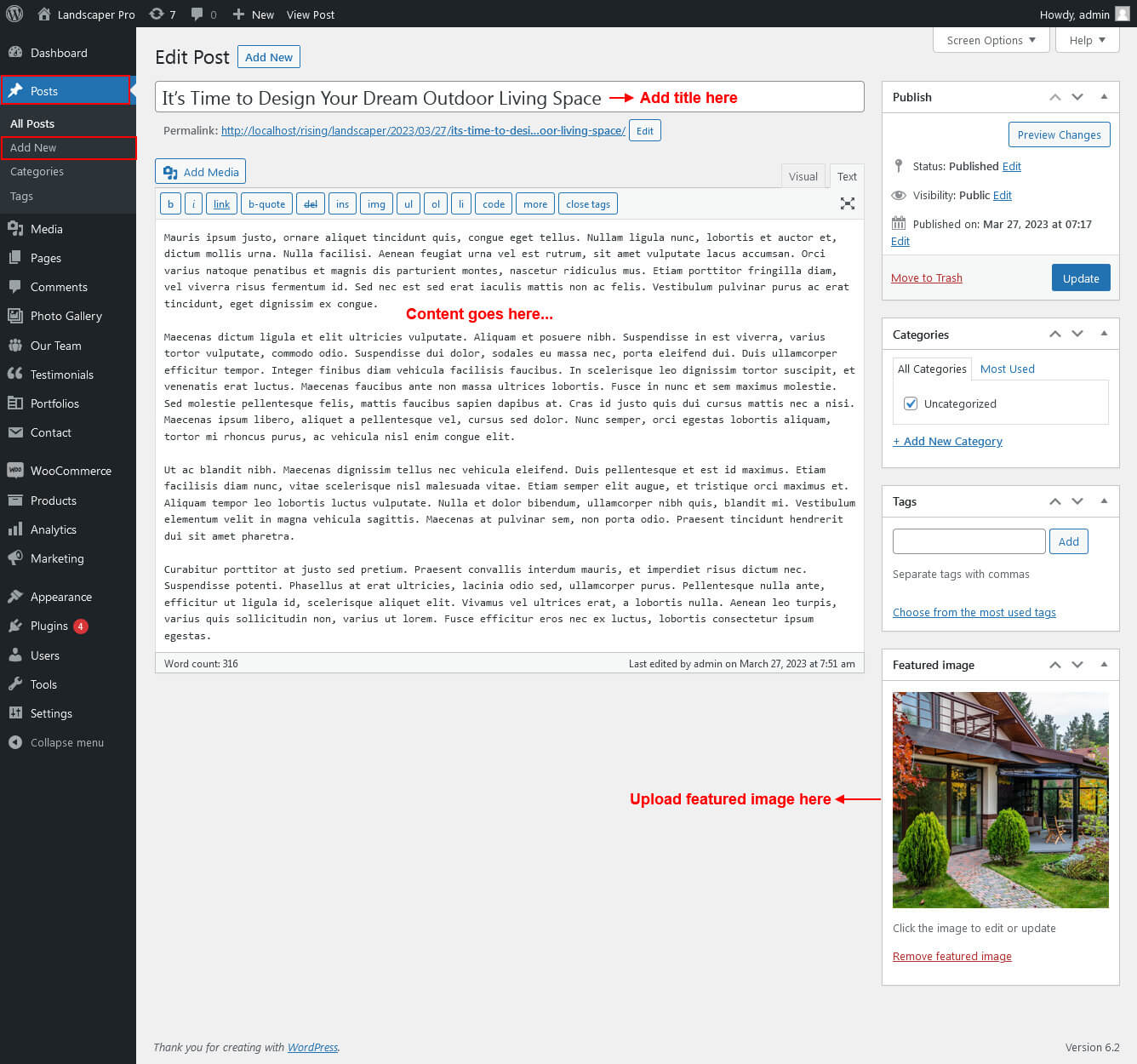
10. Partner Logo Section
- To manage this section go to Appearance » Theme Options » Sections » Section 10
- Use this shortcode to display Partner Logo section :
- [client_lists][client image="http://localhost/rising/landscaper/wp-content/themes/landscaper-pro/images/client-1.png" link="#"][client image="http://localhost/rising/landscaper/wp-content/themes/landscaper-pro/images/client-2.png" link="#"][client image="http://localhost/rising/landscaper/wp-content/themes/landscaper-pro/images/client-3.png" link="#"][client image="http://localhost/rising/landscaper/wp-content/themes/landscaper-pro/images/client-4.png" link="#"][client image="http://localhost/rising/landscaper/wp-content/themes/landscaper-pro/images/client-5.png" link="#"][client image="http://localhost/rising/landscaper/wp-content/themes/landscaper-pro/images/client-6.png" link="#"][/client_lists]

Footer
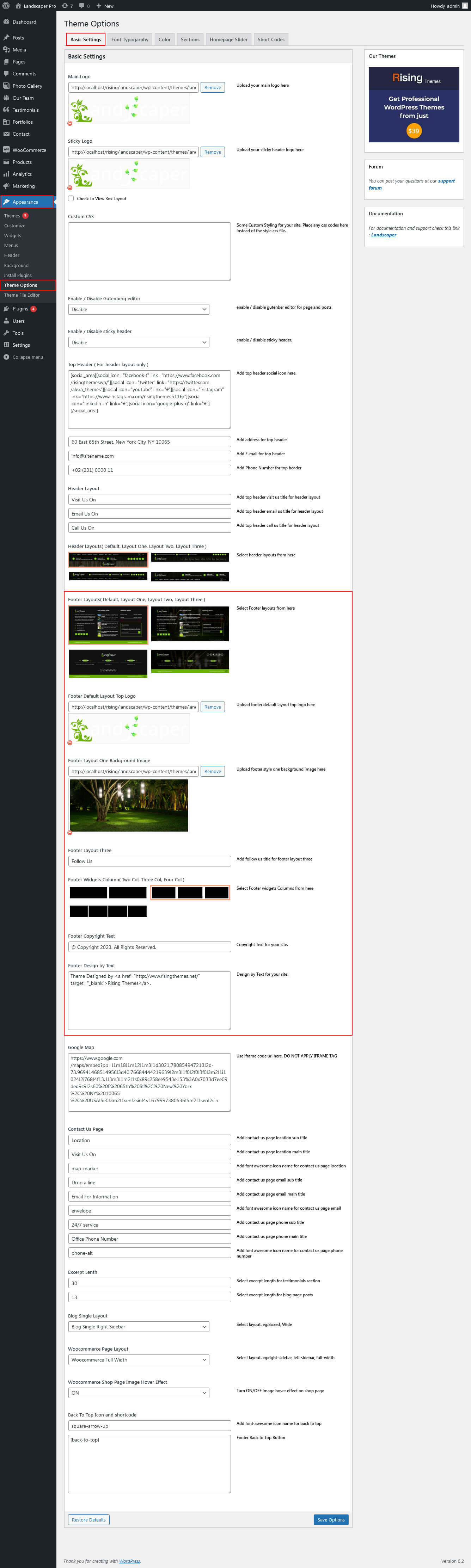
The Footer section consists of four main elements:
- Get In Touch
- Our Recent Posts
- Opening Hours
- Newsletter
- Copyright & Design by text
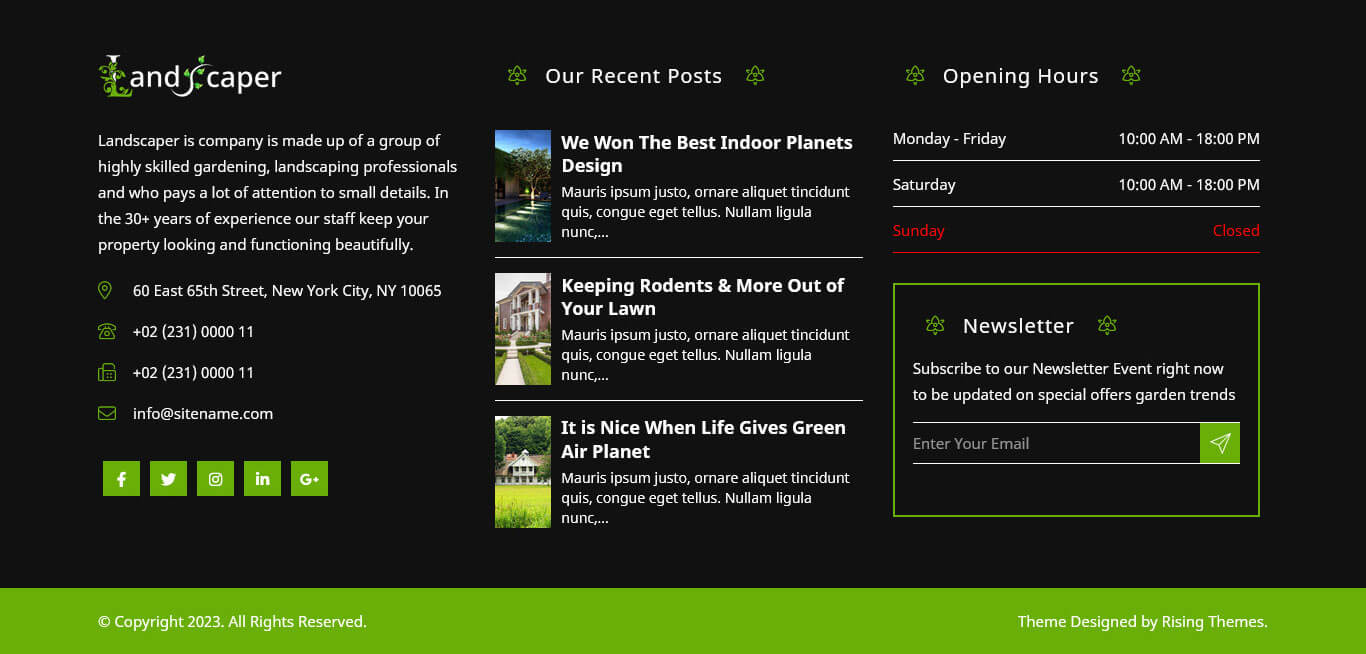
To manage footer section go to the Appearance » Theme Options » Footer
Page Templates & Sidebars
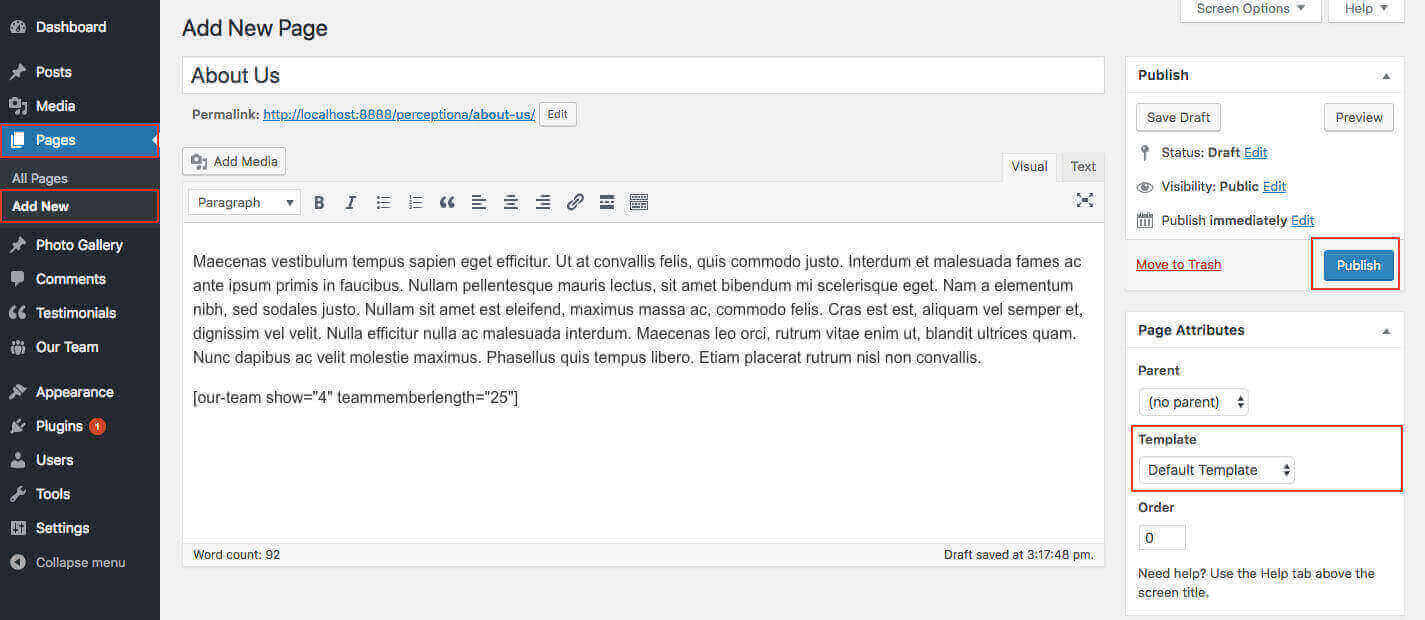
When you create a new page from the Pages » Add New section, the "Default Template" is assigned to the page by default. The default page template is a standard page template that can be with a sidebar or full-width layout and can contain custom content.
- Default Template
- Used to setting up the content on any page with Right Sidebar
- Left Sidebar
- Used to setting up the content on any page with Left Sidebar
- Full Width
- Used to setting up the content on any page without Sidebar
- Full Screen
- Used to setting up the content on any page without Sidebar Full Screen
- No Sidebar
- Used to setting up the content in center on any page without Sidebar
- Contact Us
- Used to setting up the contact page.
Widgets
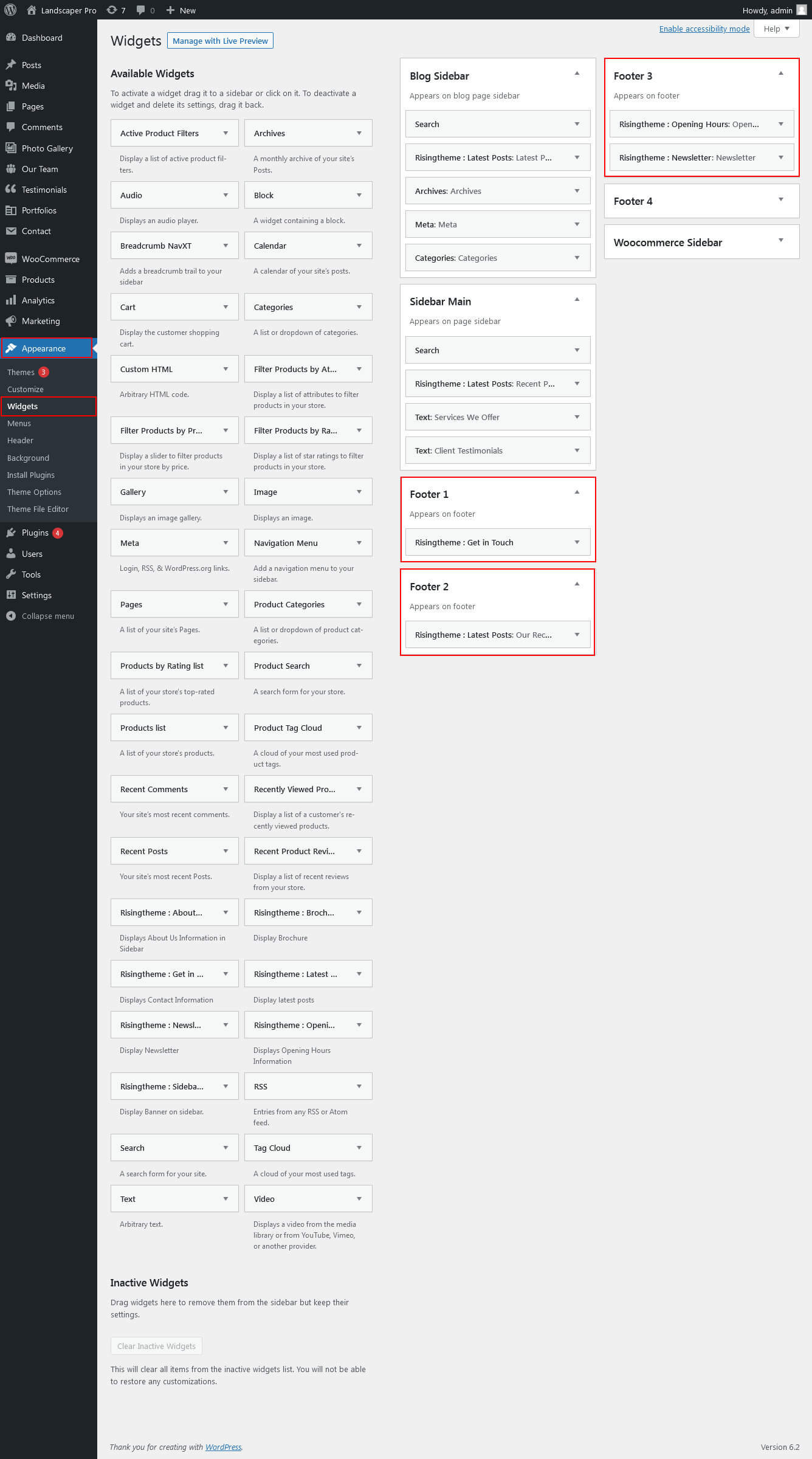
The WordPress widgets are used to manage sidebars:
- Can manage sidebar from widgets (exa. blog sidebar, main sidebar and shop widget)
- Footer section can manage from footer widgets 1,2.3,4
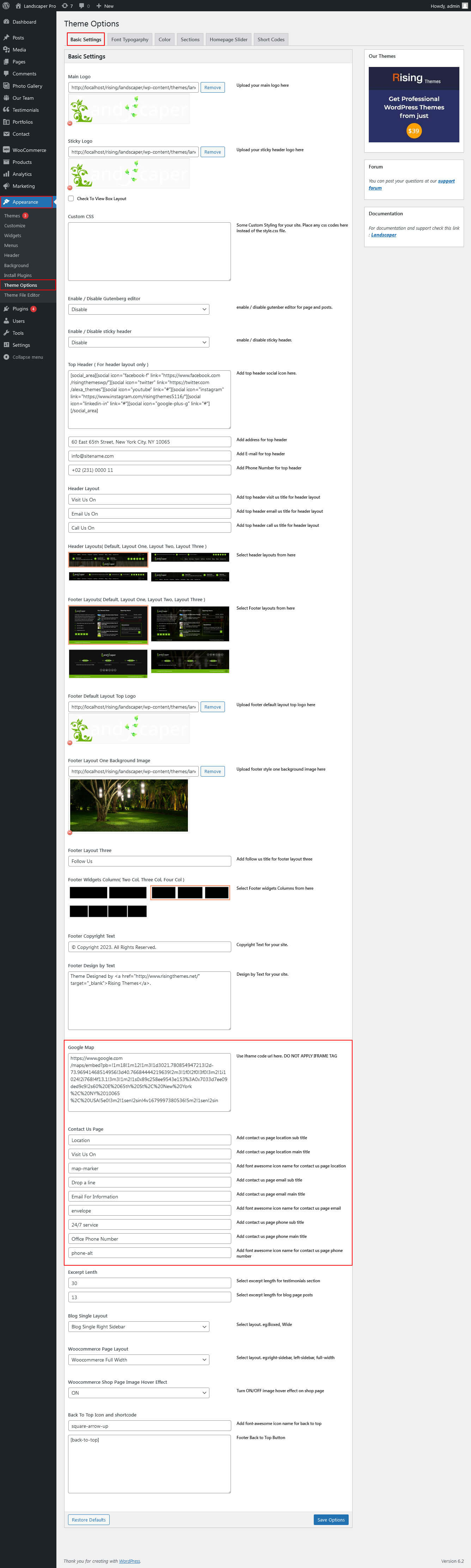
Contact Page
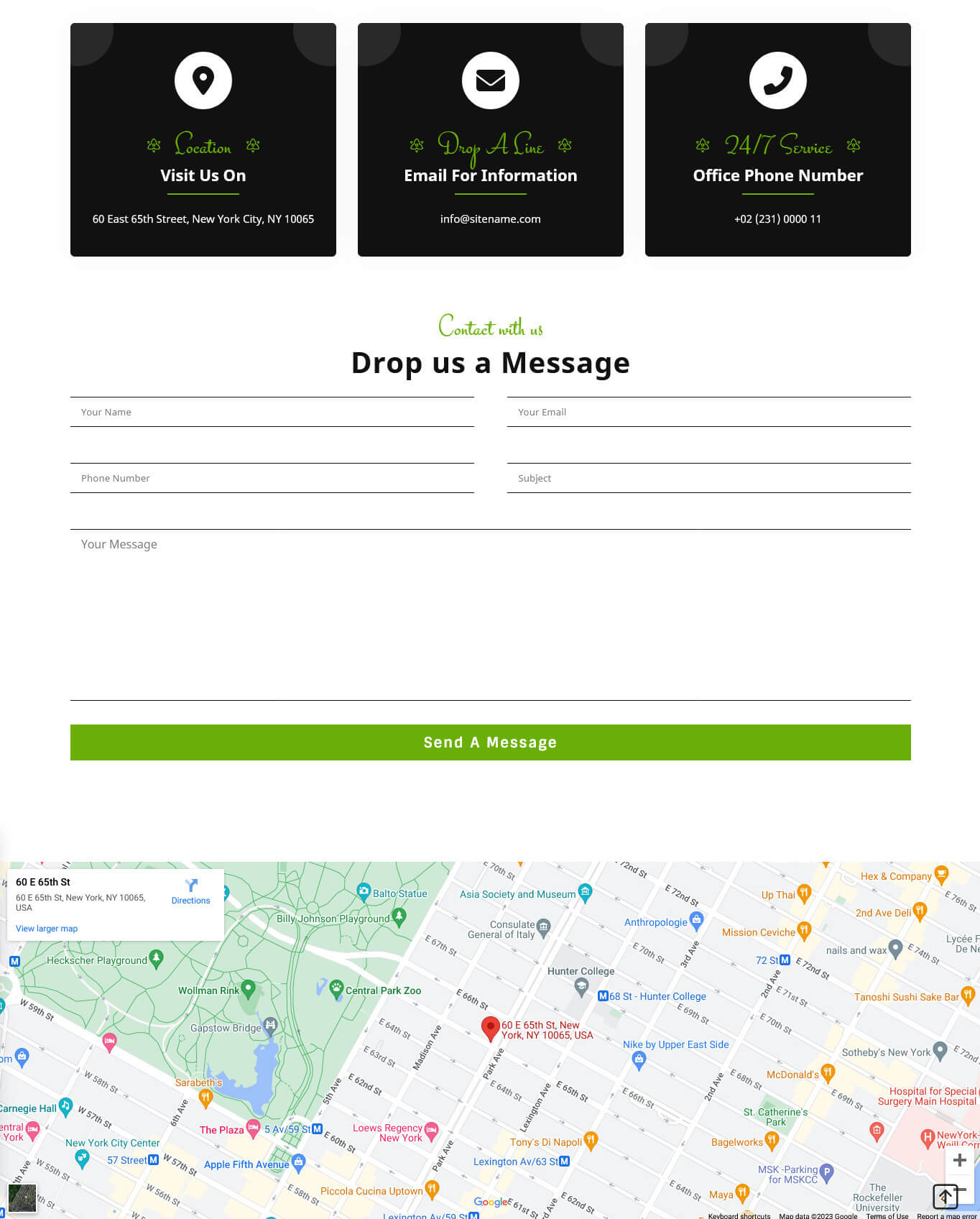
To view contact page shortcode go to Appearance » Theme Options » Contact Page:
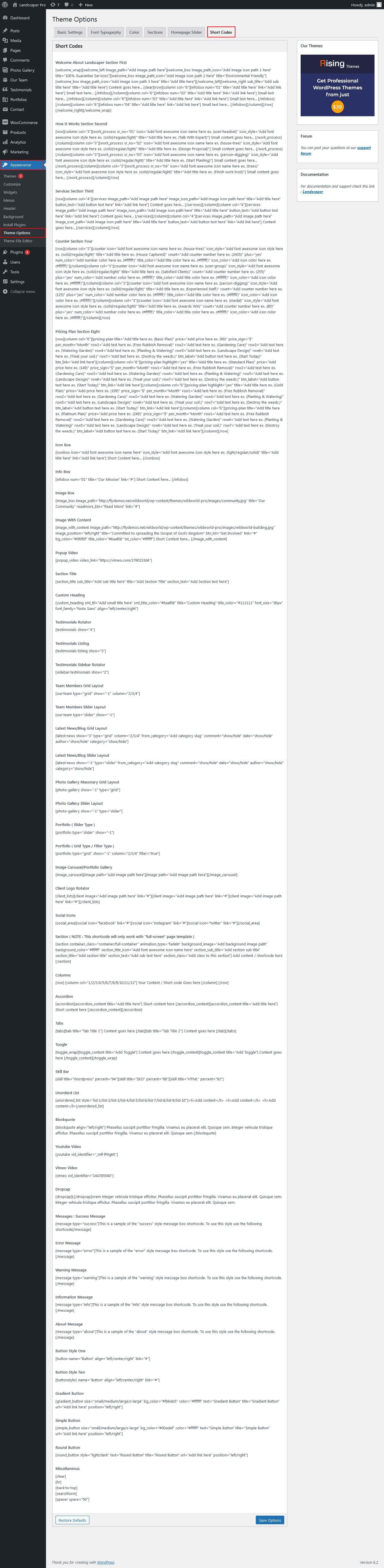
Shortcodes
To view all shortcodes go to Appearance » Theme Options » Short Codes:
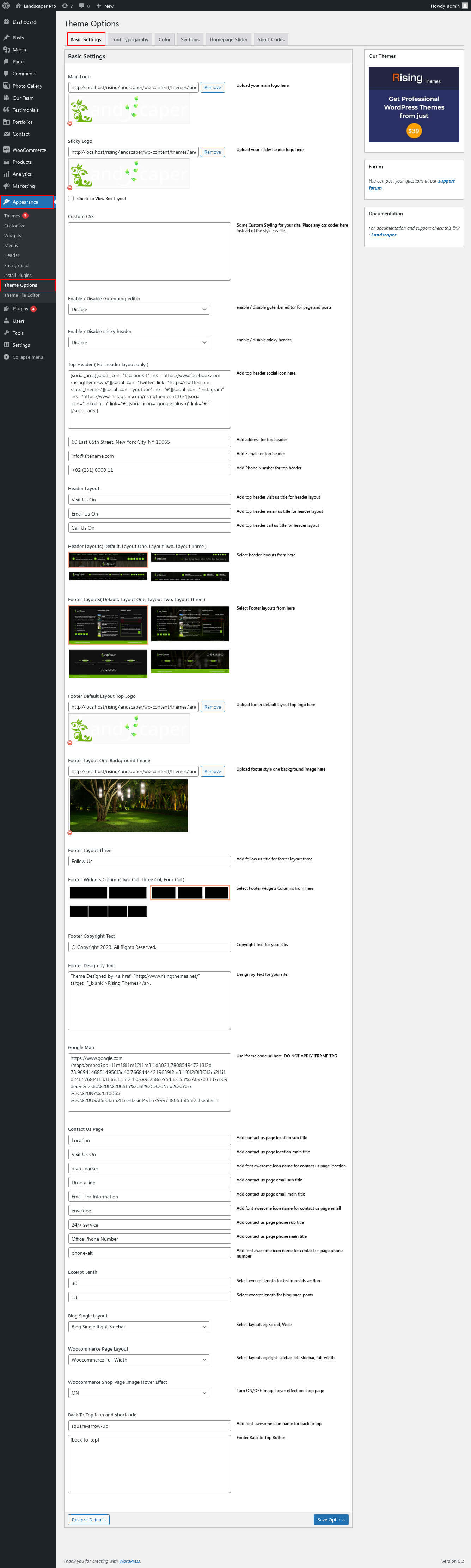
Basic Setting / Font Typography / Color
To view besic setting go to Appearance » Theme Options » Besic Setting :
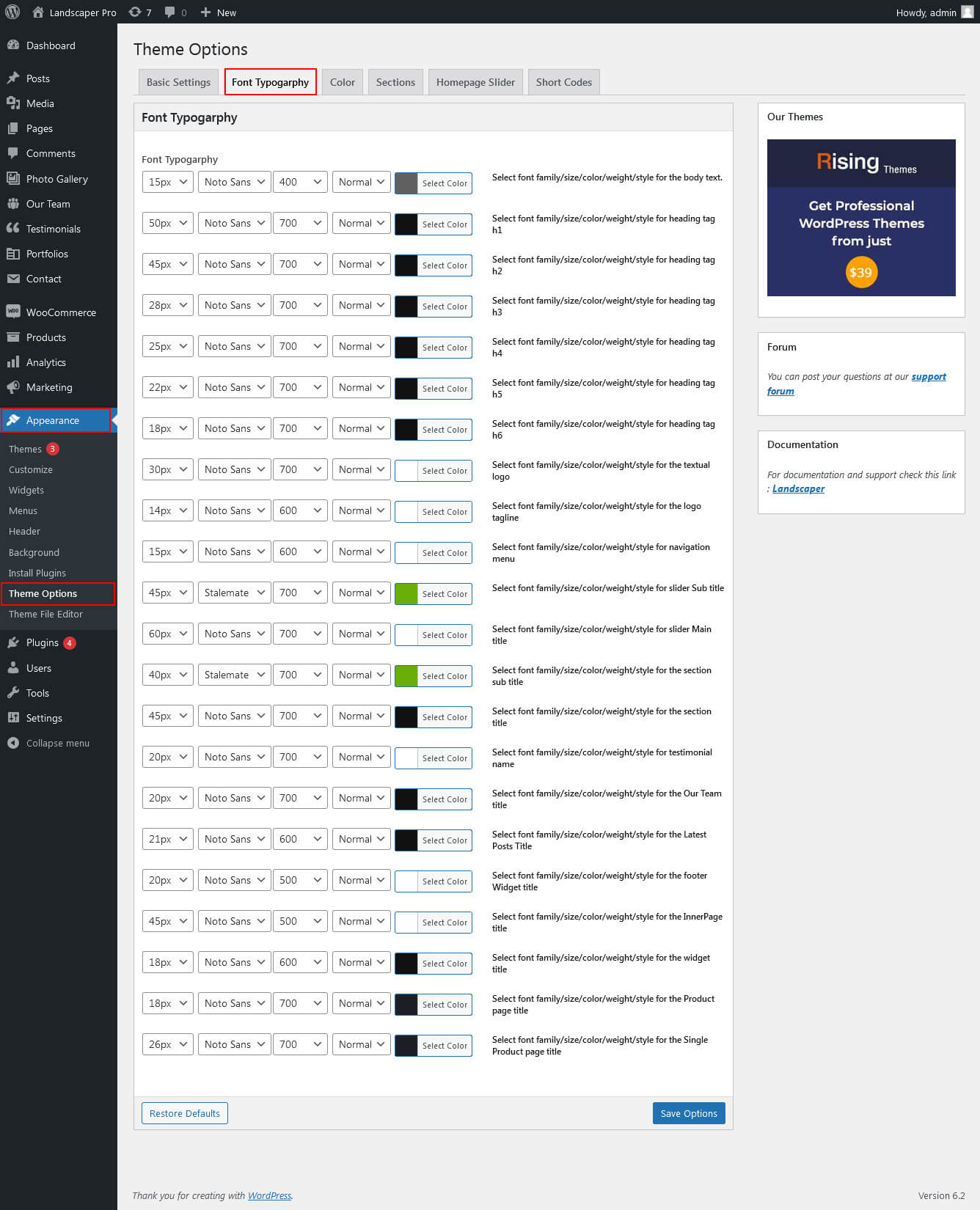
Font Typography
To view Font Typography go to Appearance » Theme Options » Font Typography :
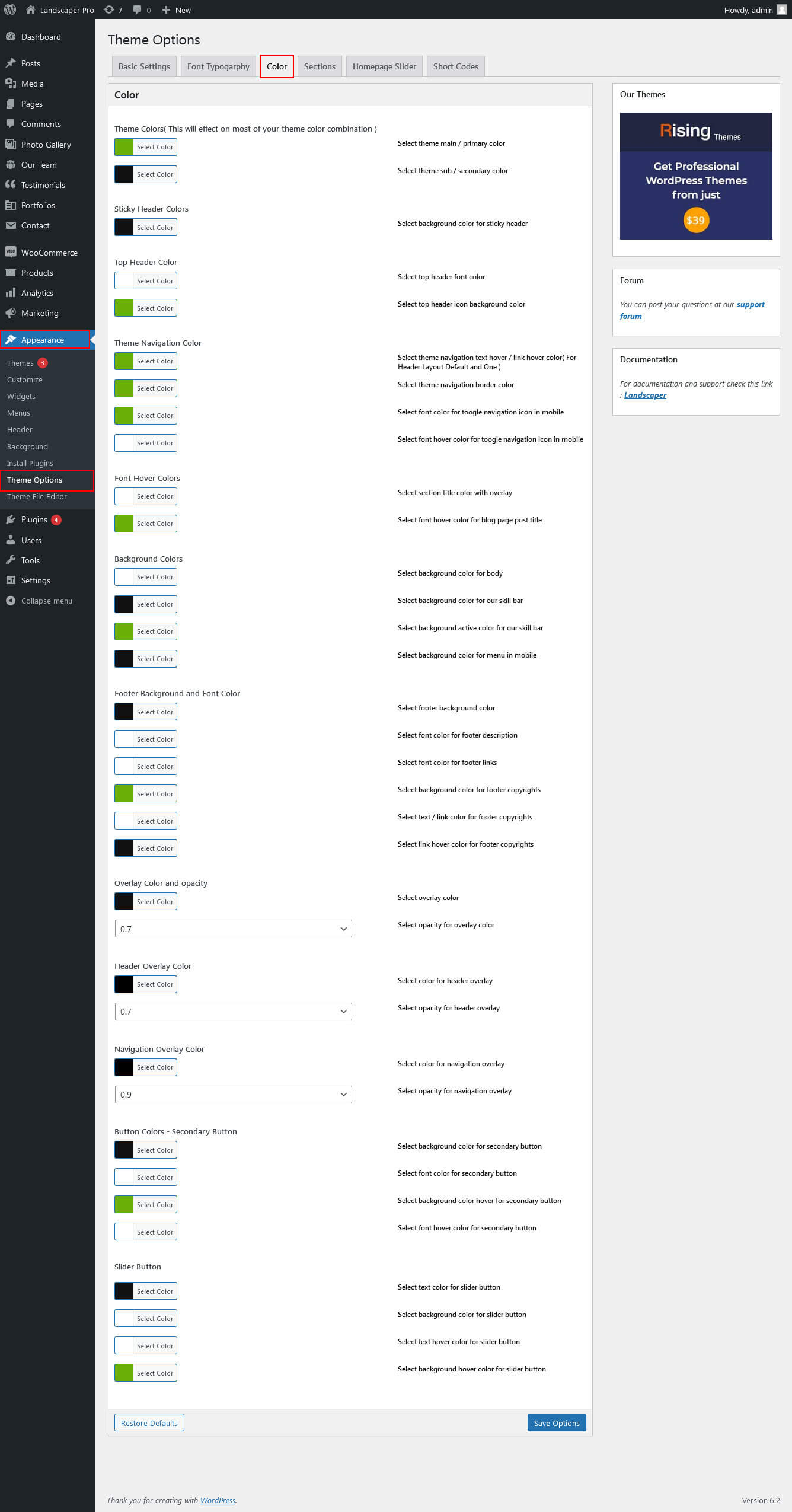
Color
To view Color go to Appearance » Theme Options » Color :
Portfolio
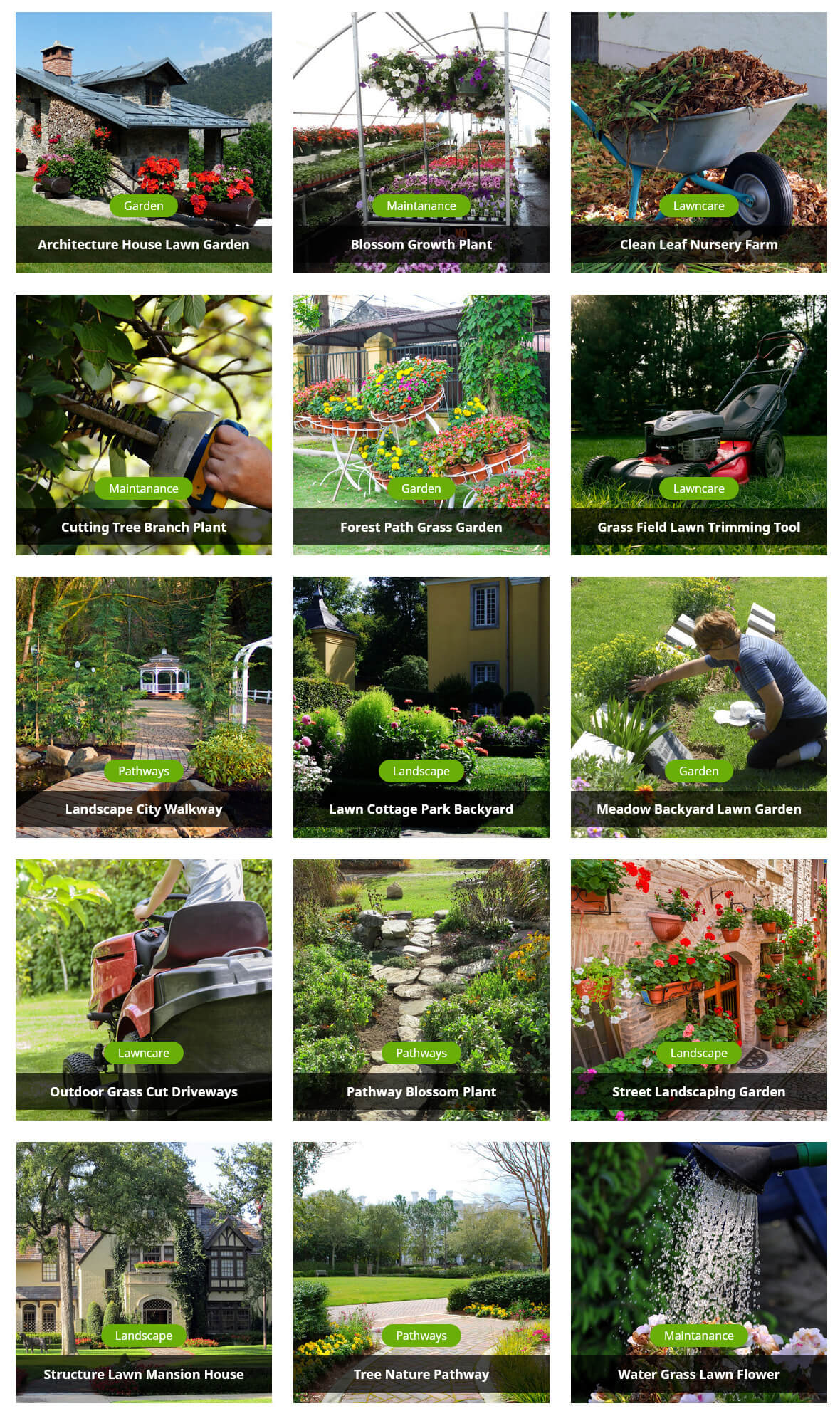
To view portfolio Page:
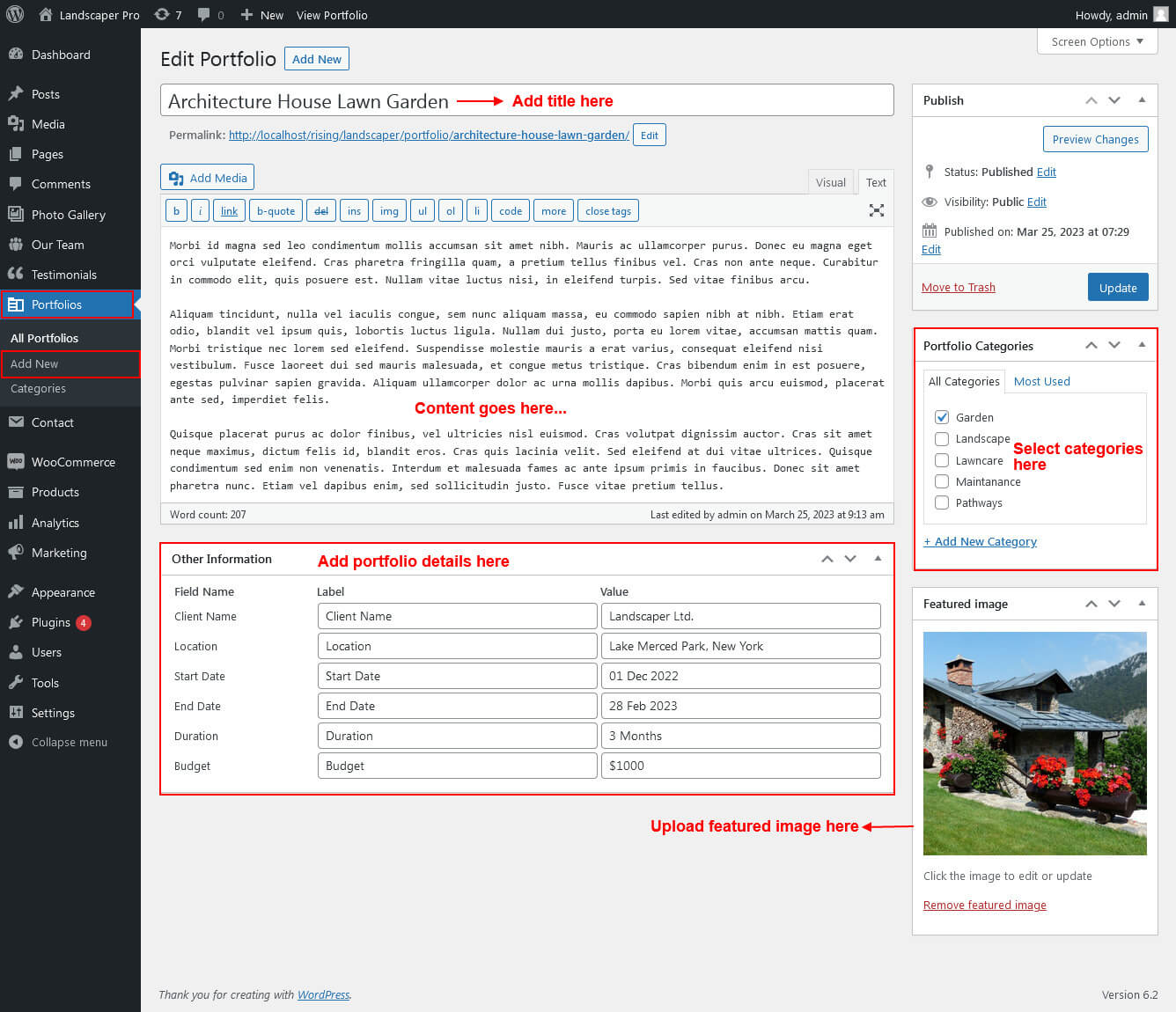
- First of all create new posts from Portfolio -> Add New
- Use this shortcode to display Portfolio type Grid : [portfolio show="no. of item to be shown( Note: -1 for displaying all items )" type="grid" filter="true/false" column="2/3/4"]
- Use this shortcode to display Portfolio type Slider : [portfolio show="no. of item to be shown( Note: -1 for displaying all items )" type="slider"]
- Use this shortcode to display Portfolio type Filter : [portfolio show="no. of item to be shown( Note: -1 for displaying all items )" type="grid" filter="true/false" column="2/3/4"]
Gallery
To view Gallery Page:
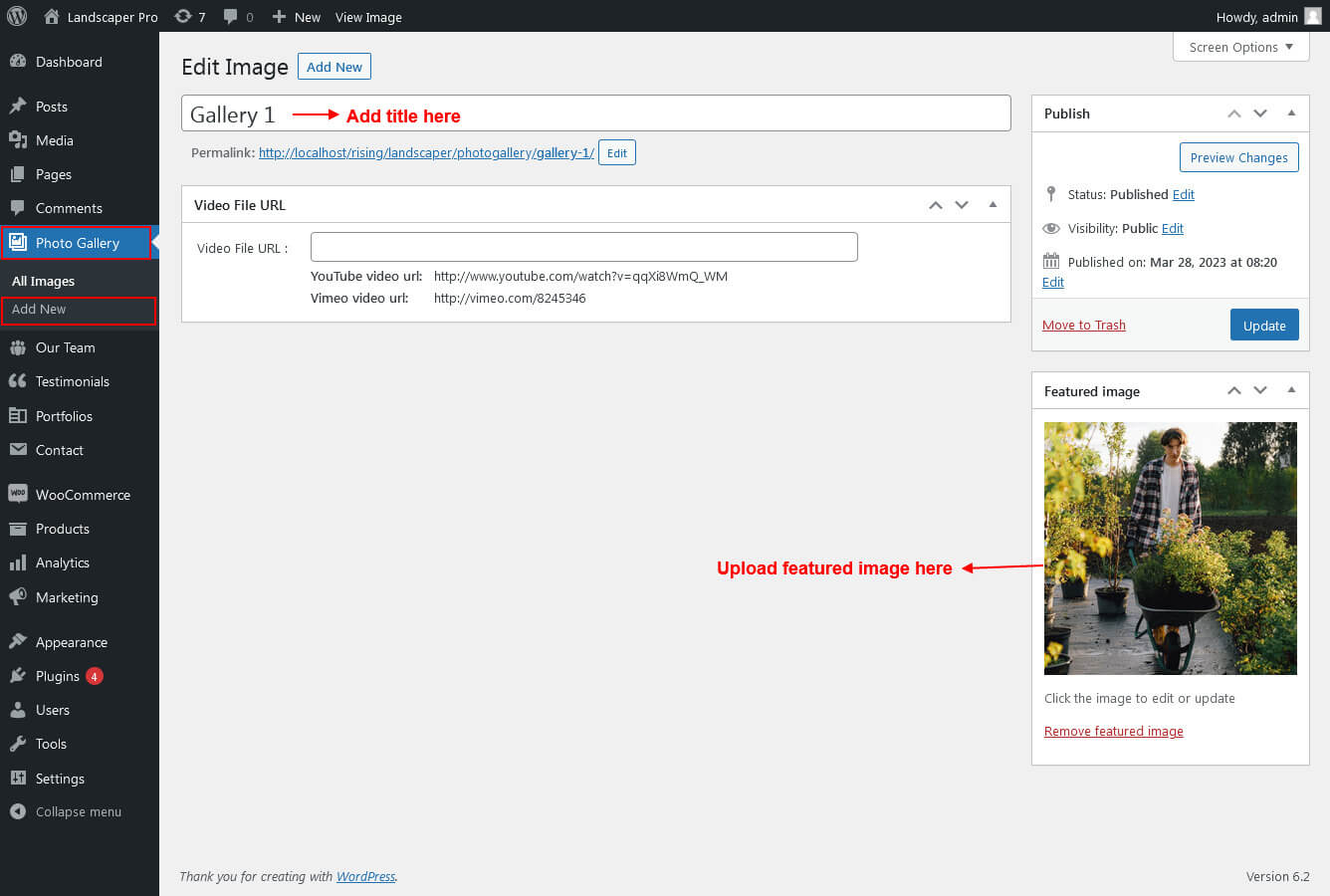
- First of all create new posts from gallery -> Add New
- Use this shortcode to display Gallery type Grid Masonary : [photo-gallery show="no. of item to be shown( Note: -1 for displaying all items )" type="grid"]
- Use this shortcode to display Gallery type Slider : [photo-gallery show="no. of item to be shown( Note: -1 for displaying all items )" type="slider"]